Introduction
We offer webhook functionality, as part of a journey. To create a webhook you should navigate to the templates section of the app.Setting up a webhook
We’ll show you how to use a webhook with a real life example: making a post request to posthog about an email being sent to a specific user. The fist step is going to template page, and select the webhook dropdown when creating a new template You’ll then need to specify the url you wish laudspeaker to notify, as well as the HTTP method, (we support GET or POST amongst others) For our example, we make the urlhttps://app.posthog.com/capture and the method is POST
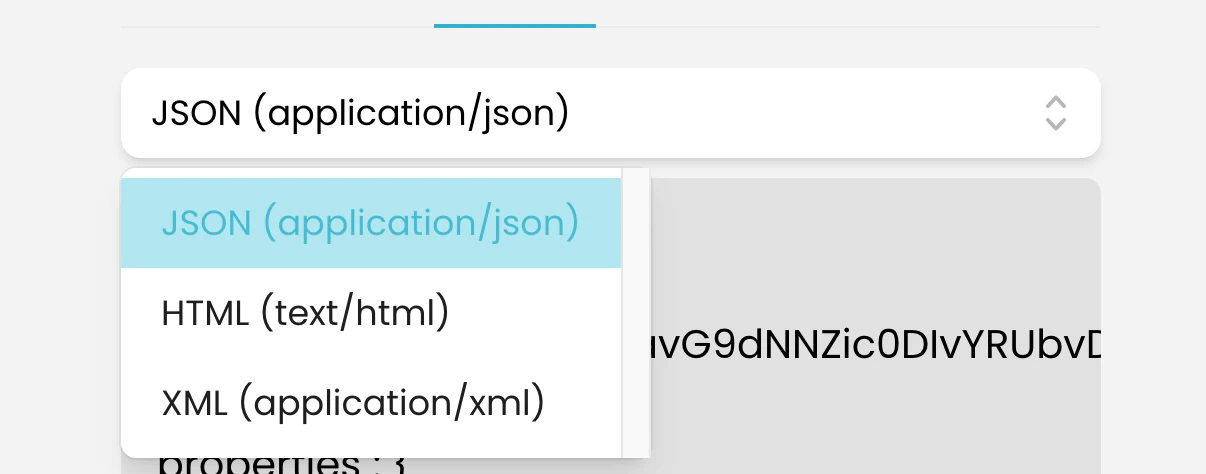
To specify the content you’ll need to click on the content tab, shown in the screenshot
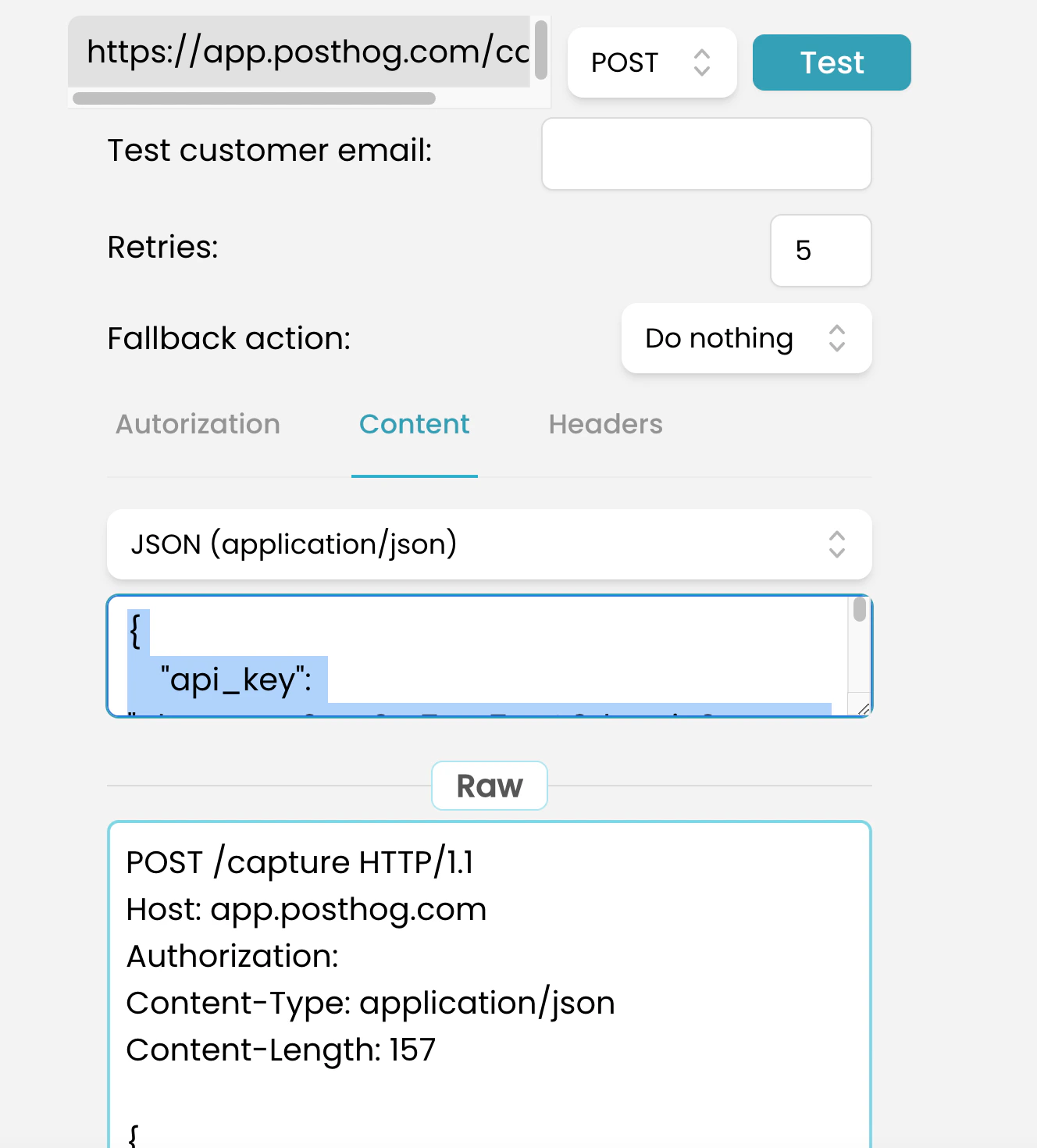
{{ posthogId[0] }} shown below

Using a webhook in a journey
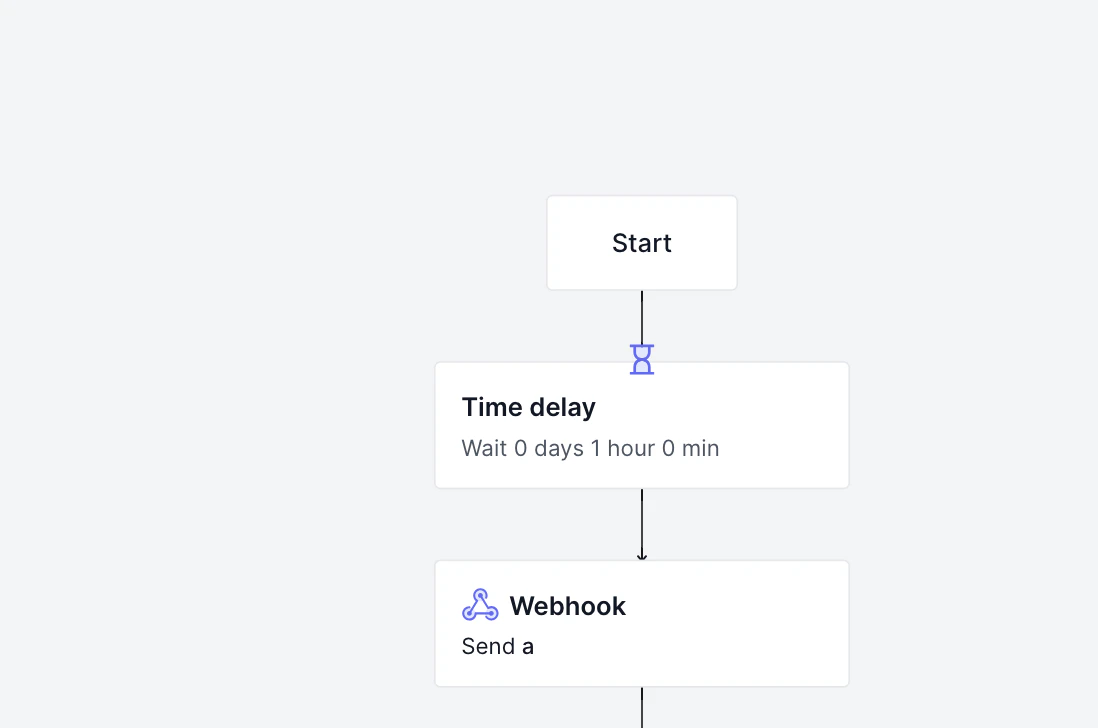
Now that we have a webhook template set up we can use it in a journey like a regular message step. Simply drag the webhook step to the journey and connect it to a preceding step with a trigger of your choice. In our journey we use a time delay step with a delay of 1 hour.