Setting up firebase in Laudspeaker
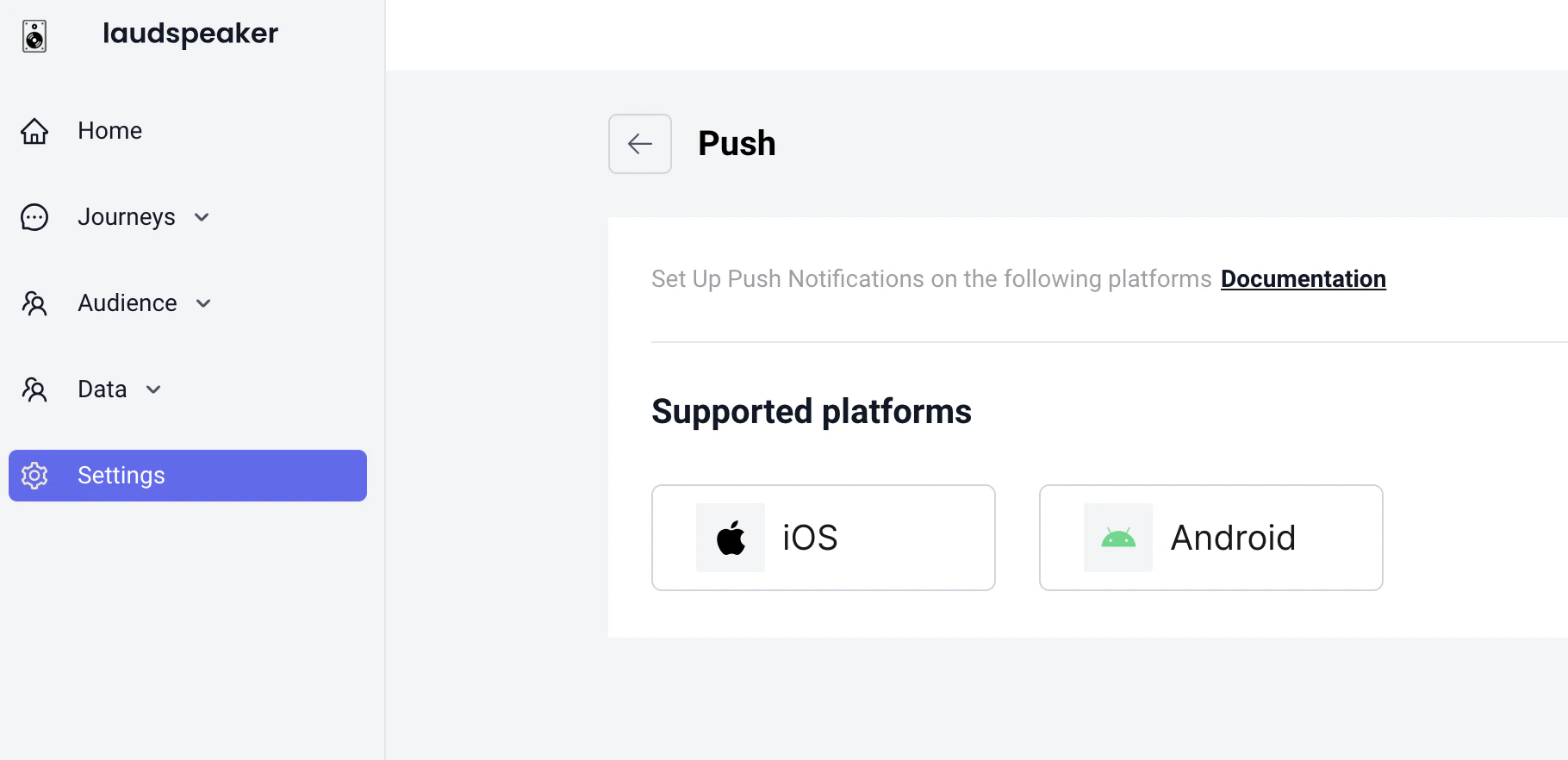
The first step in being able to send push notificaitons is setting up firebase in Laudspeaker. You need to navigate to the settings page, select push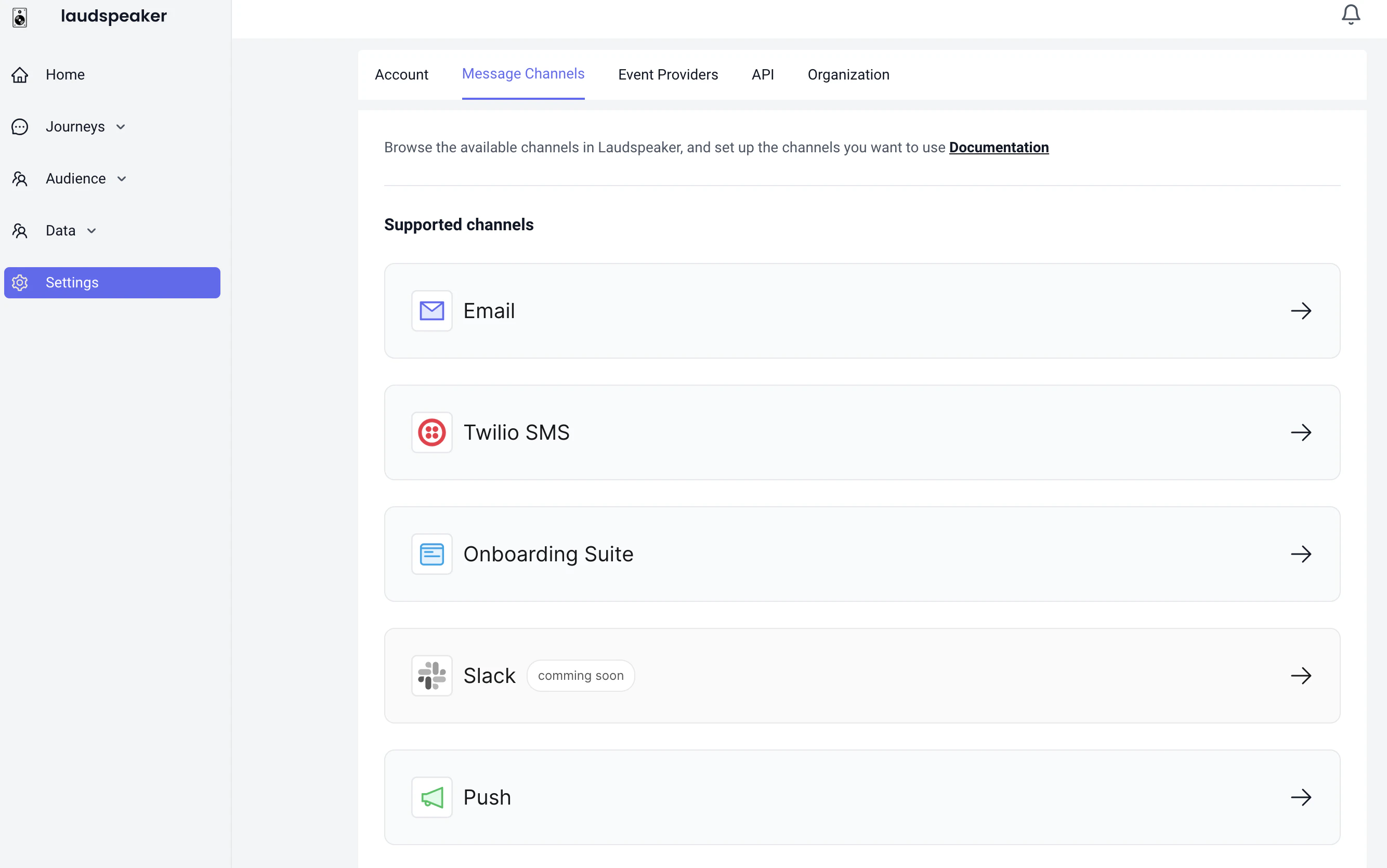
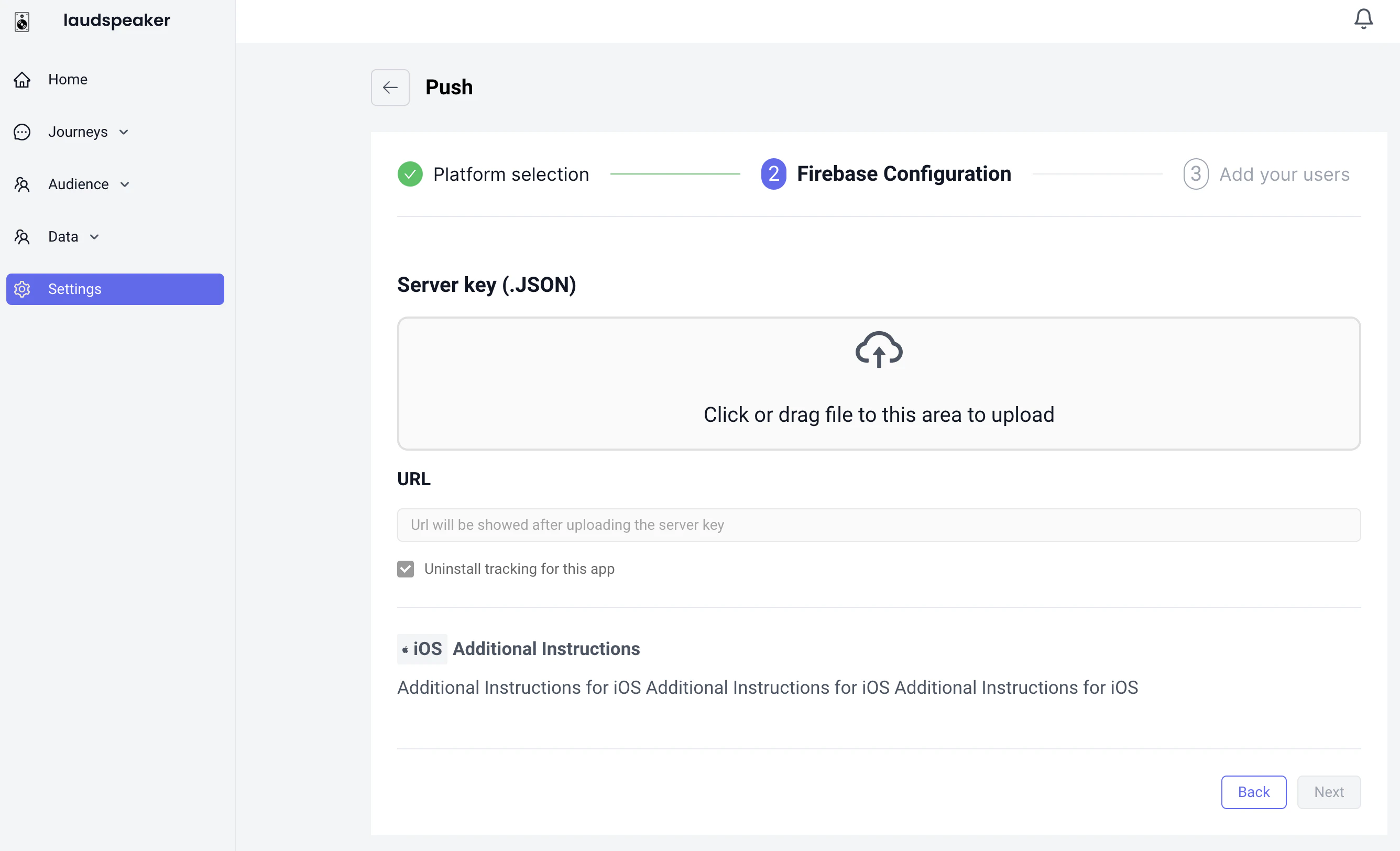
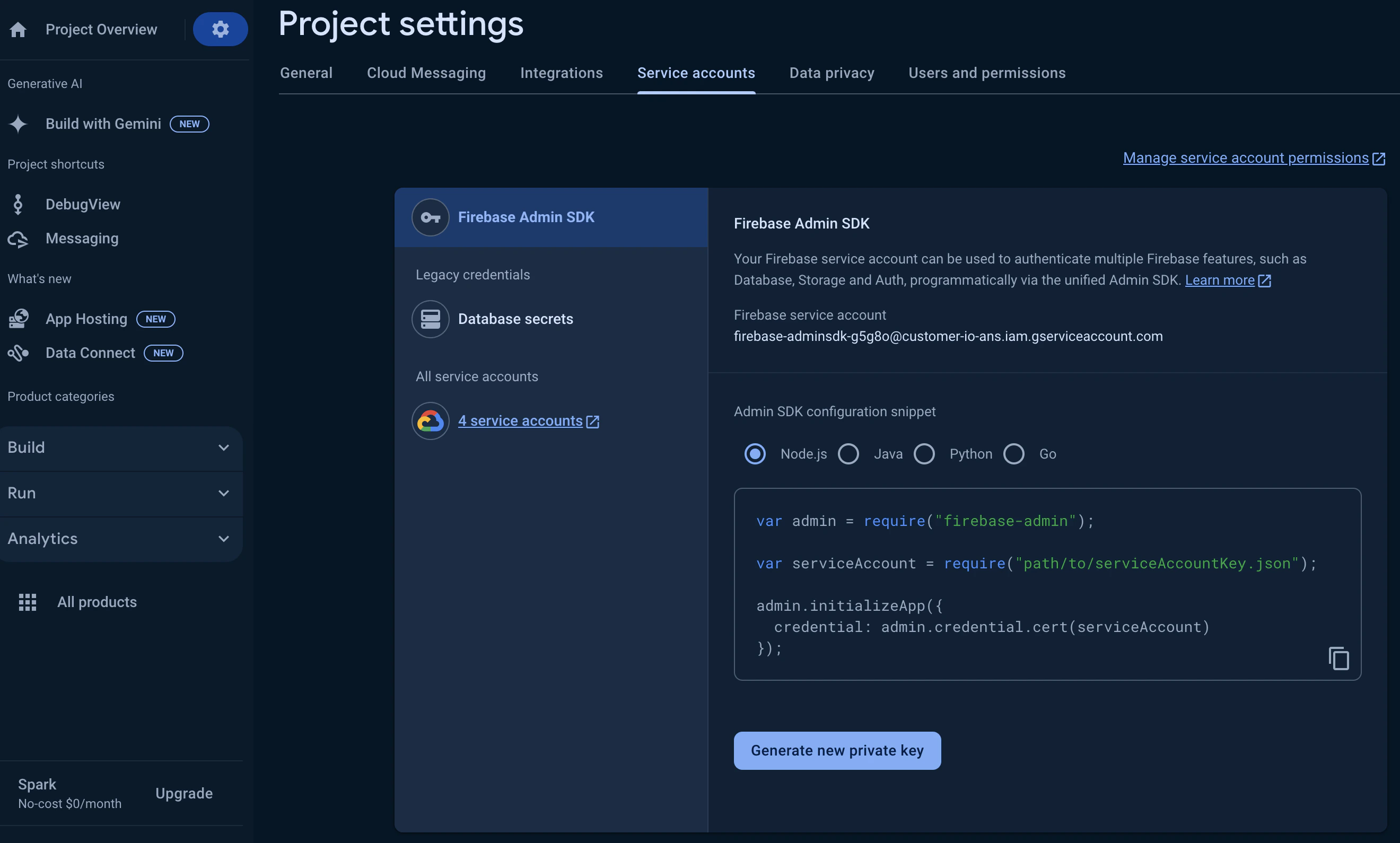
https://console.firebase.google.com/u/0/project/[YOUR_PROJECT_NAME]/settings/serviceaccounts/adminsdk. The page looks like the screenshot below and you generate the file by pressing the Generate new private key button
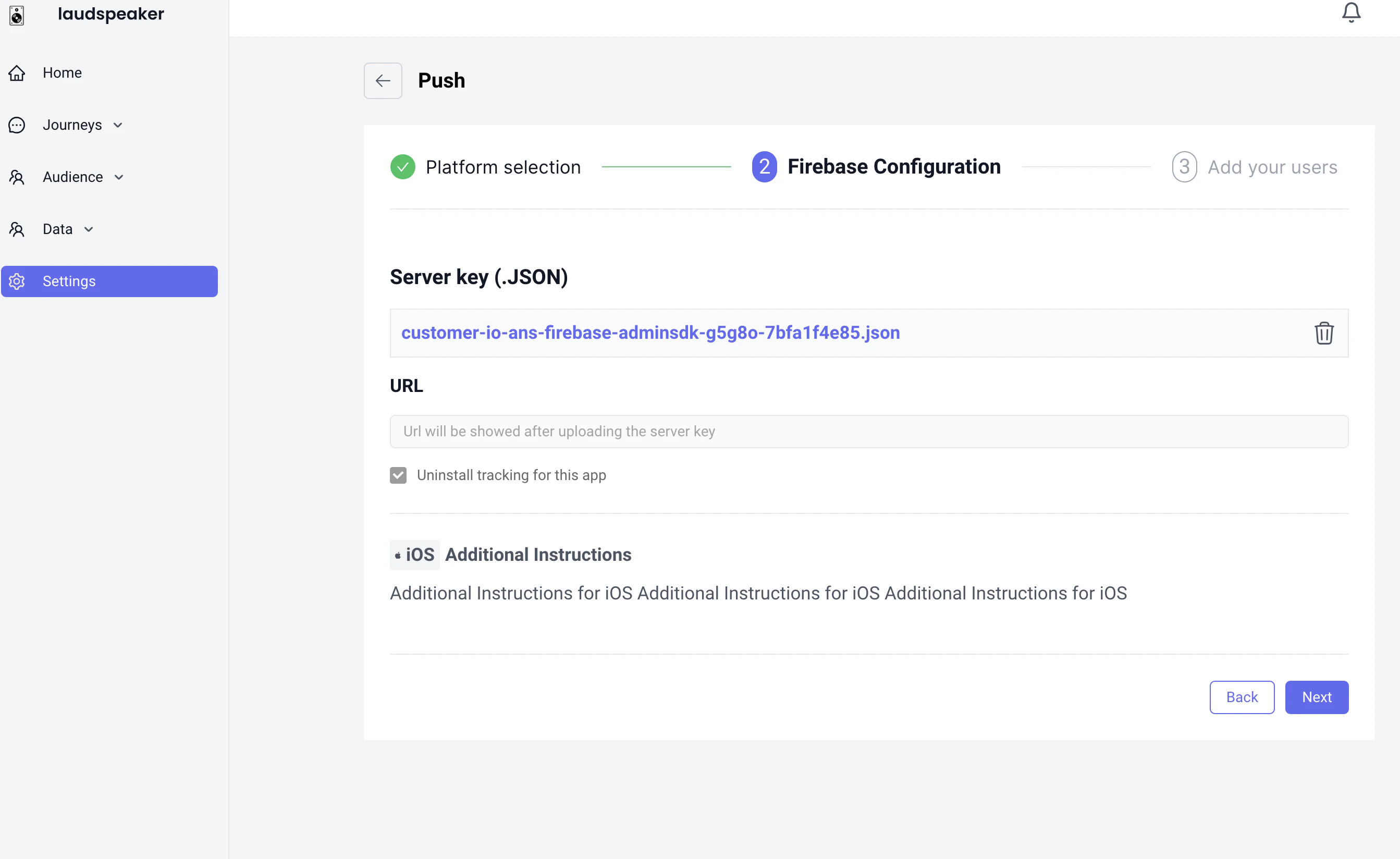
Setting up your user schema and user primary key
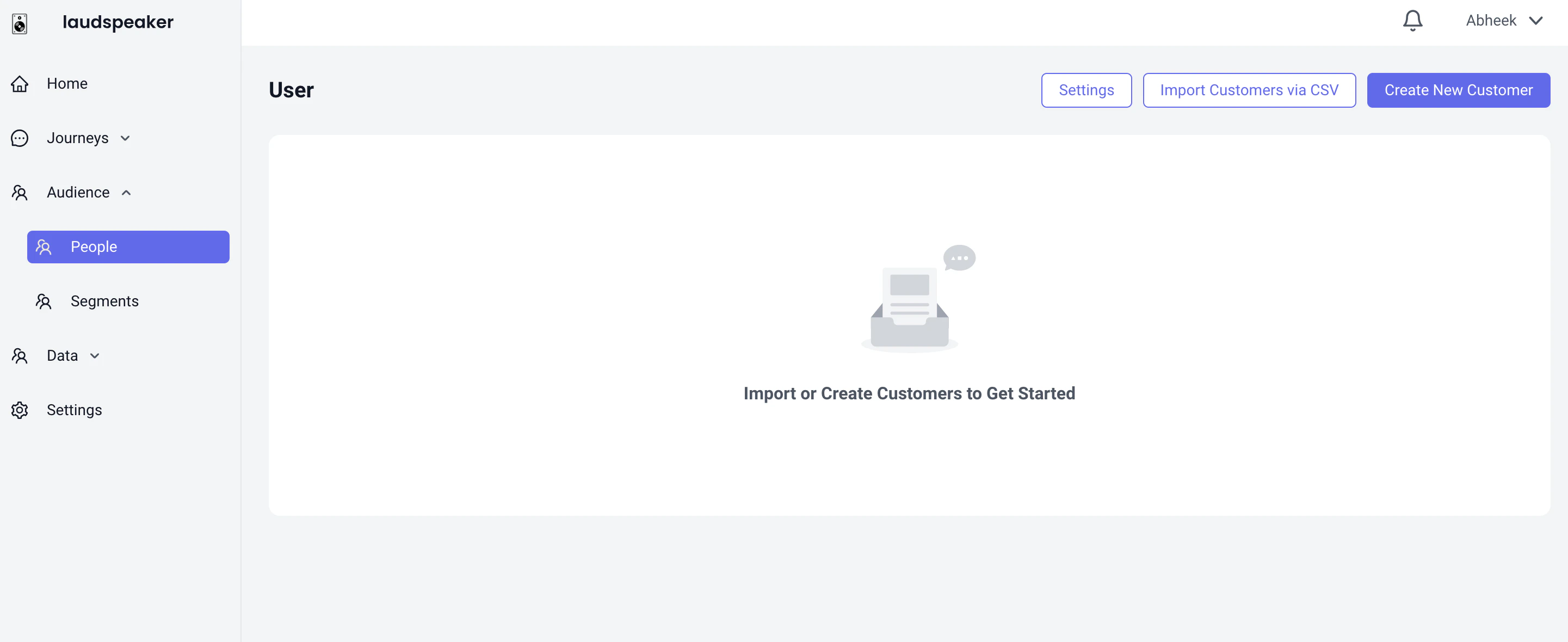
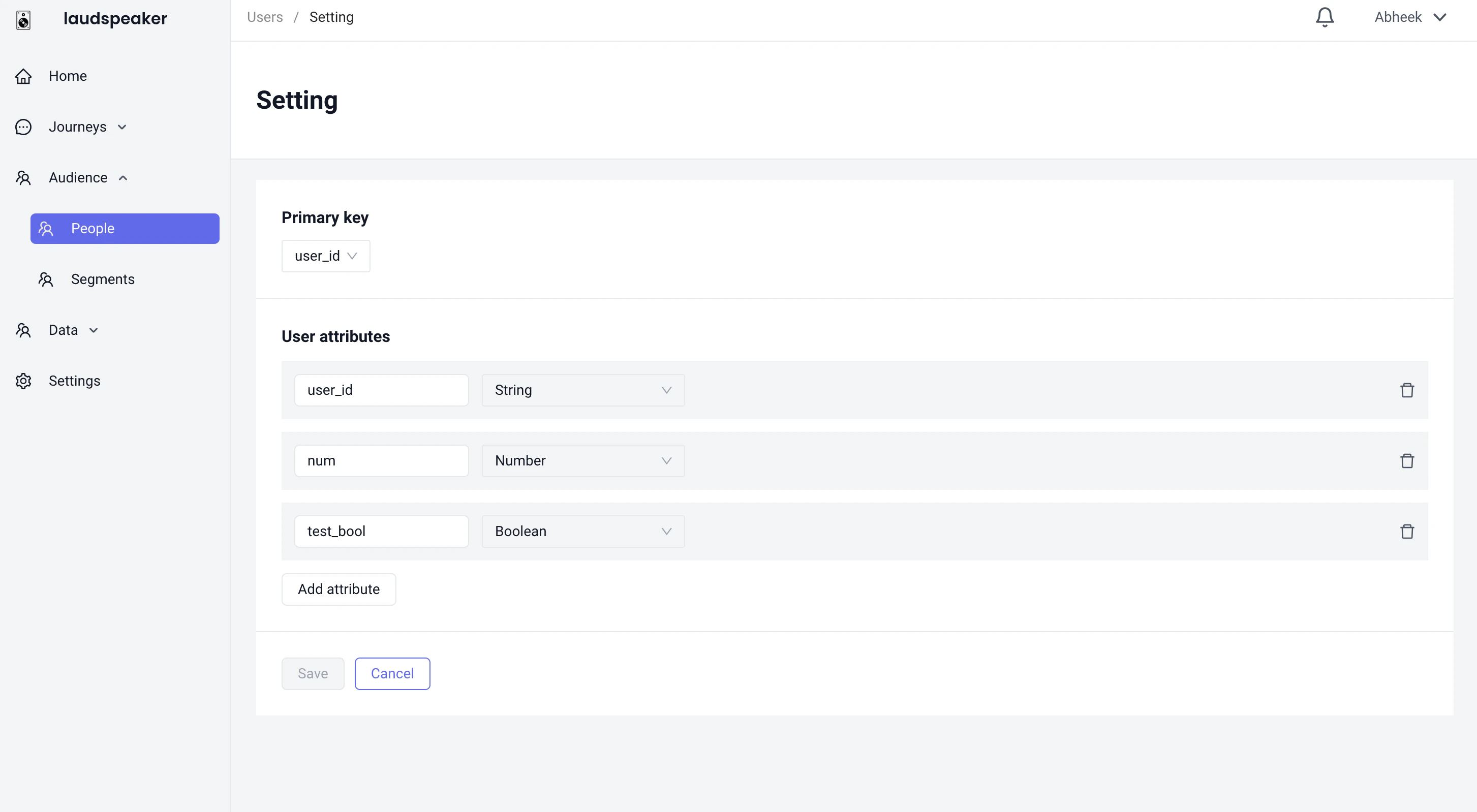
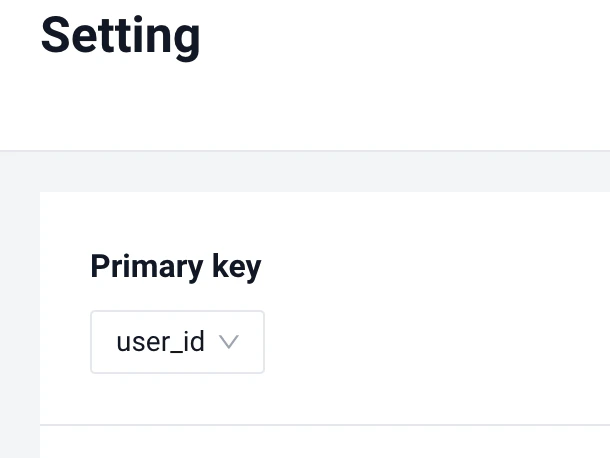
To be able to add users you will need to tell Laudspeaker how you want to uniquely identify your users. For example you may have a specialuser_id field to uniquely define your users. To do this you need to navigate to the People page under Audience.
Starting up the tutorial app
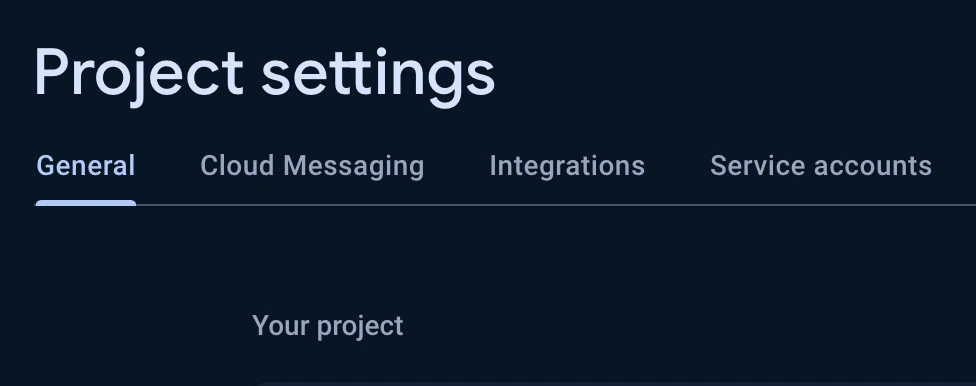
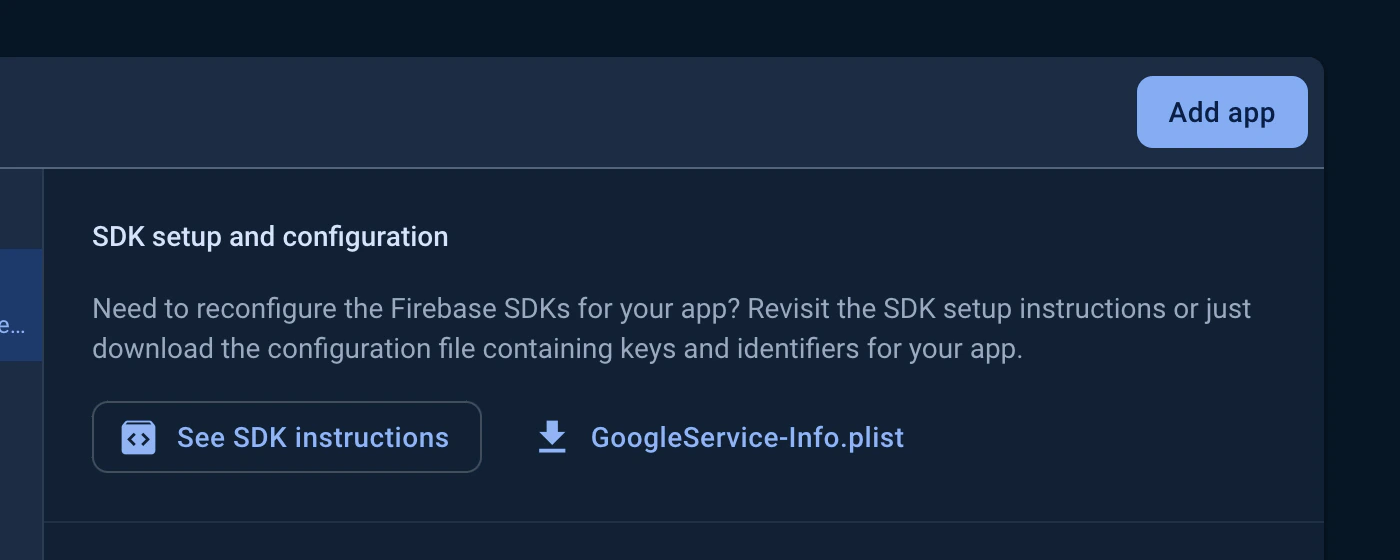
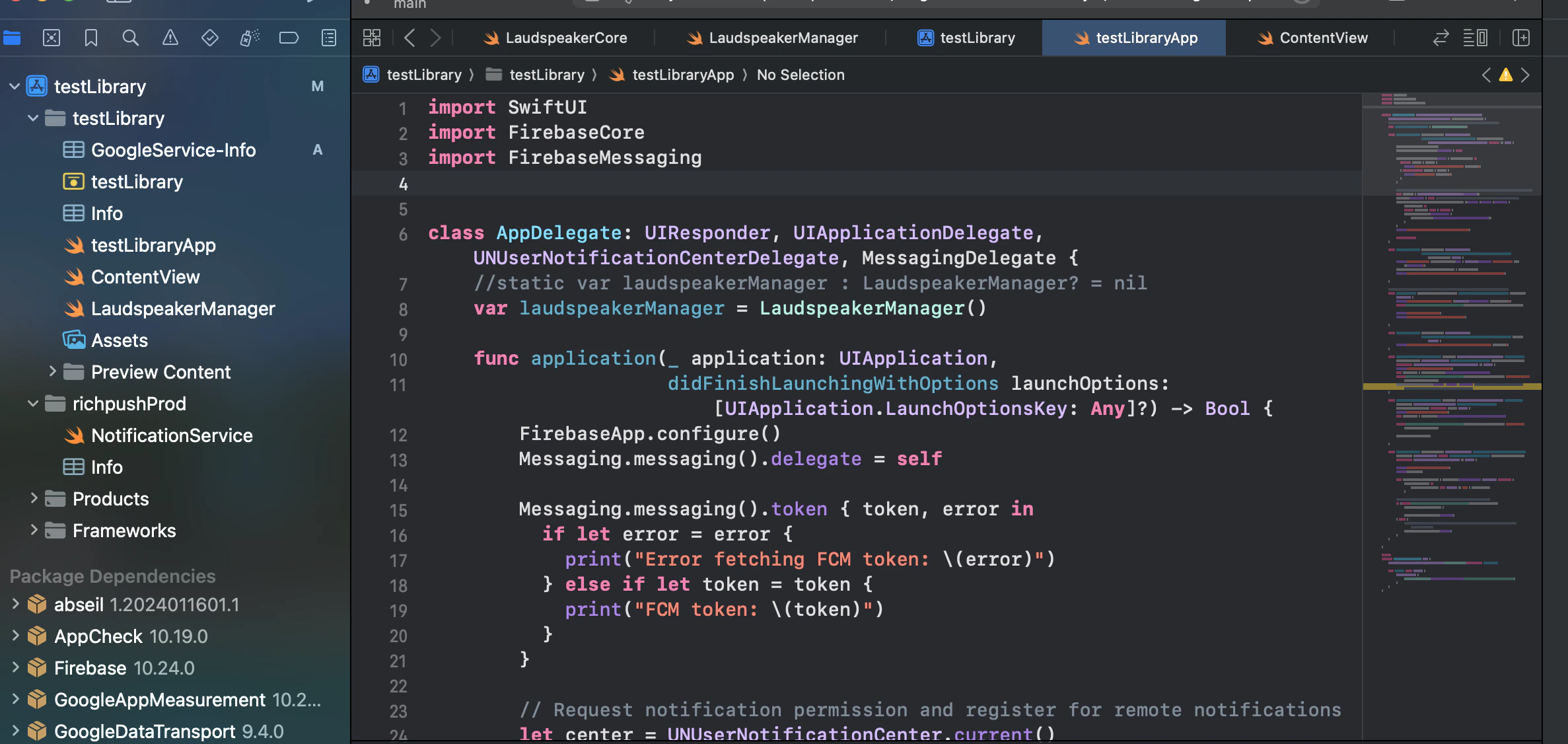
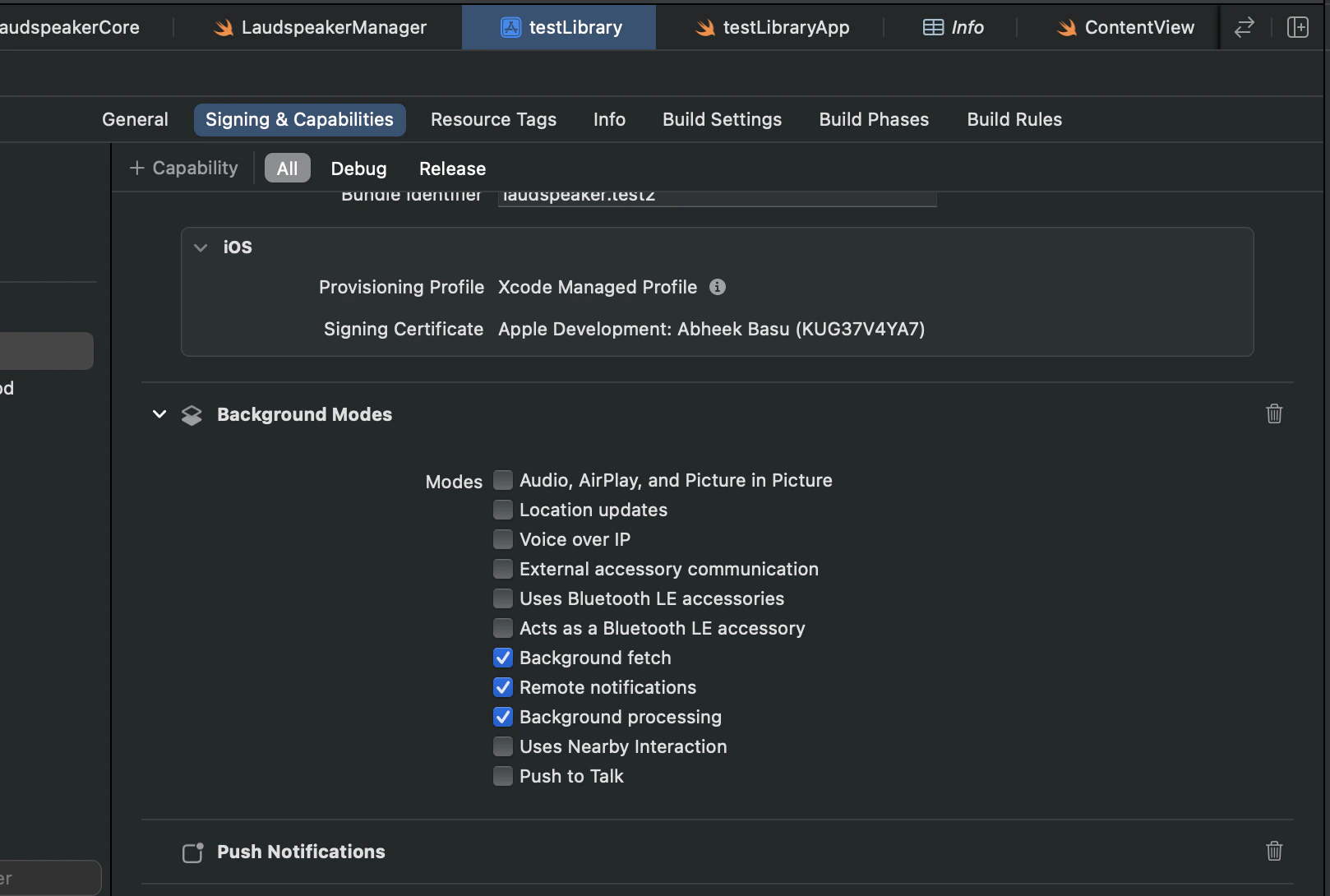
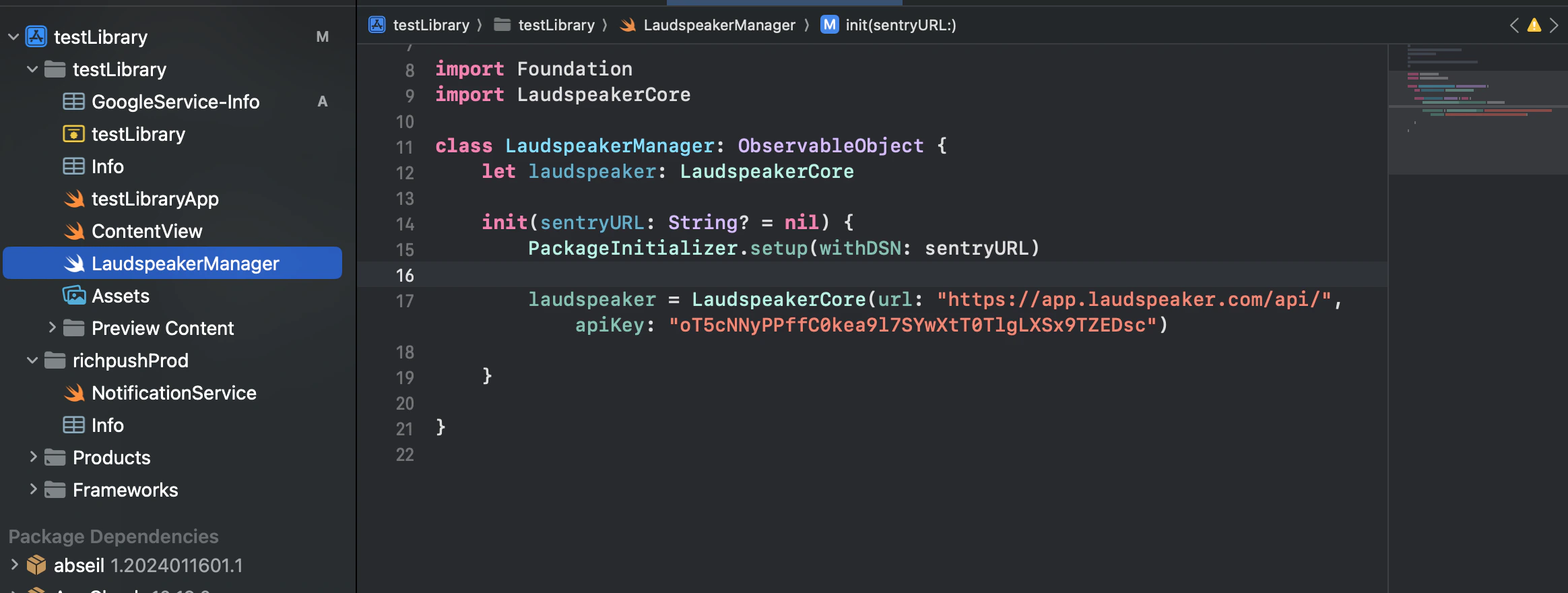
We have two sample projects you can use, an ios: https://github.com/laudspeaker/ios-sample-app or android one: https://github.com/laudspeaker/android-sample-app . This tutorial will use the ios sample as the example but you can easily substitute with the android. You need to add theGoogleService-Info.plist, you can find this in the General tab of the Project settings in firebase

identify
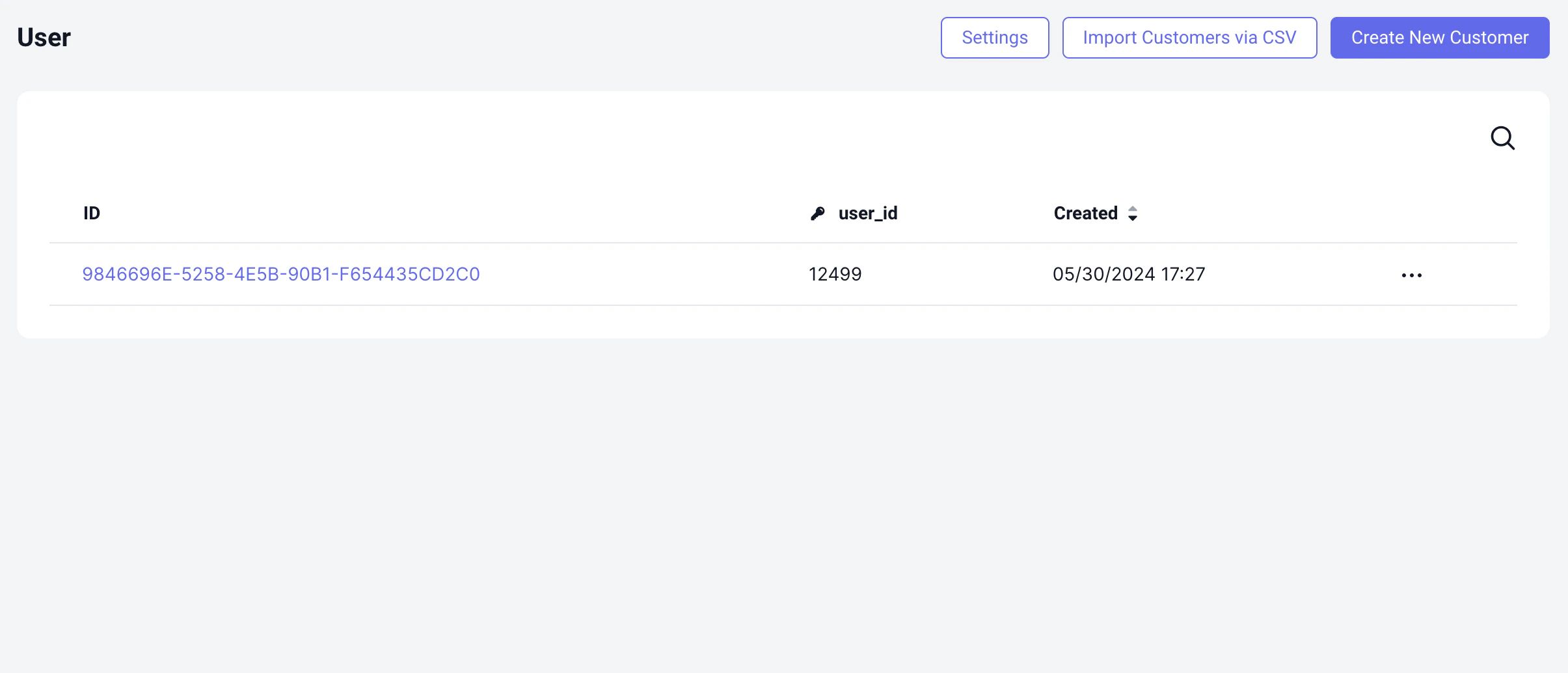
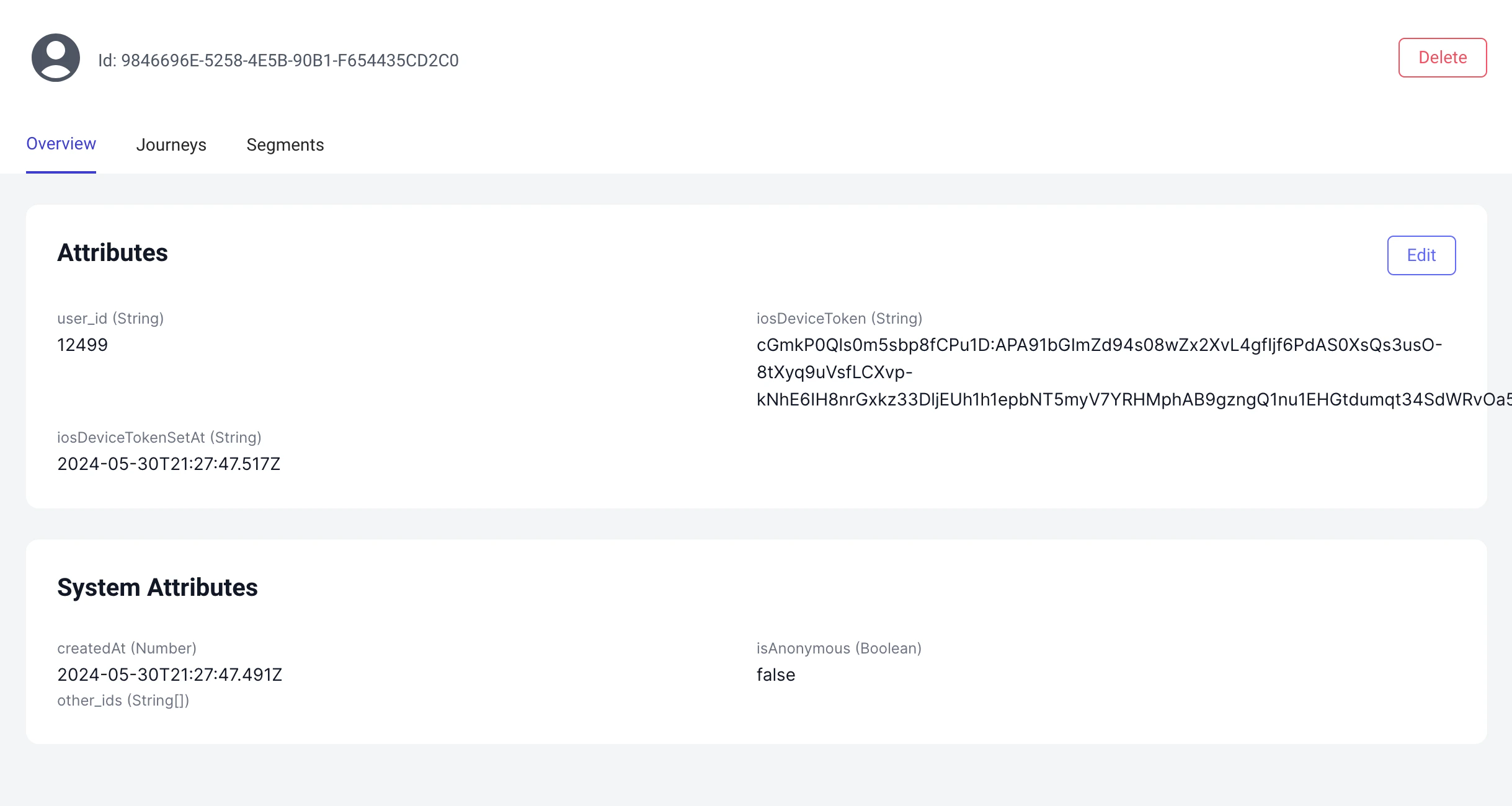
Now that user should appear in laudspeakeer under the people tab:
Creating and starting our journey
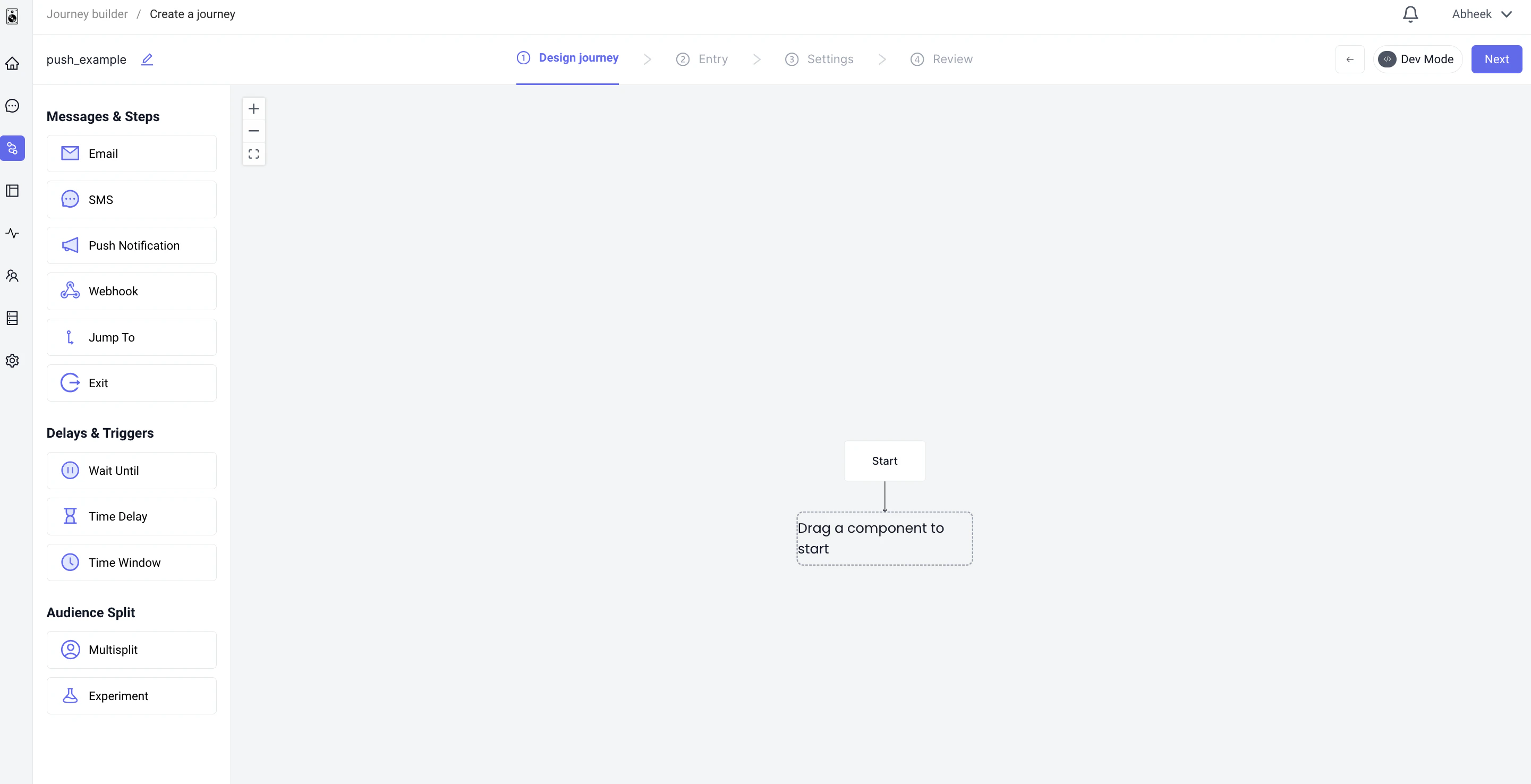
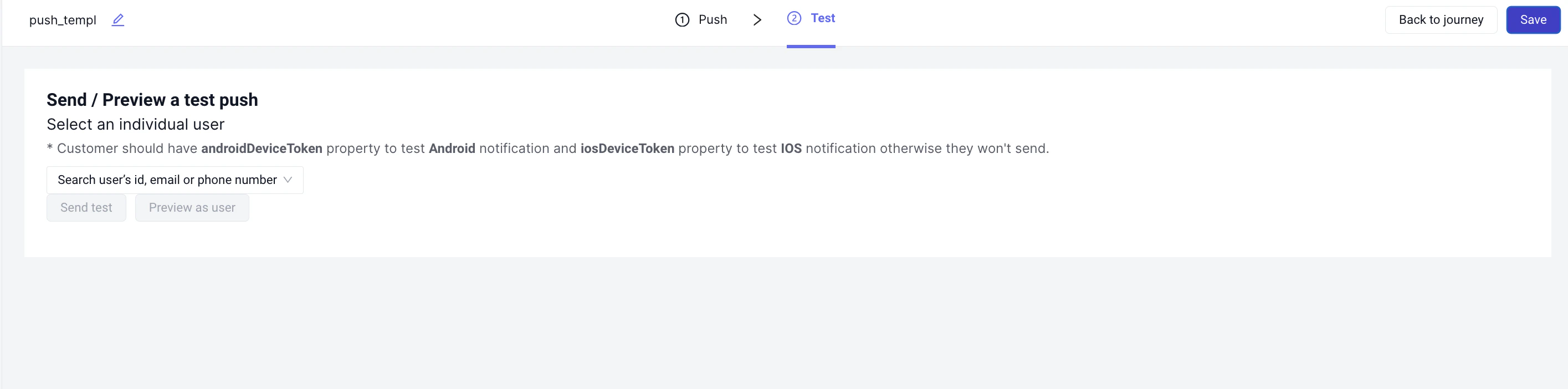
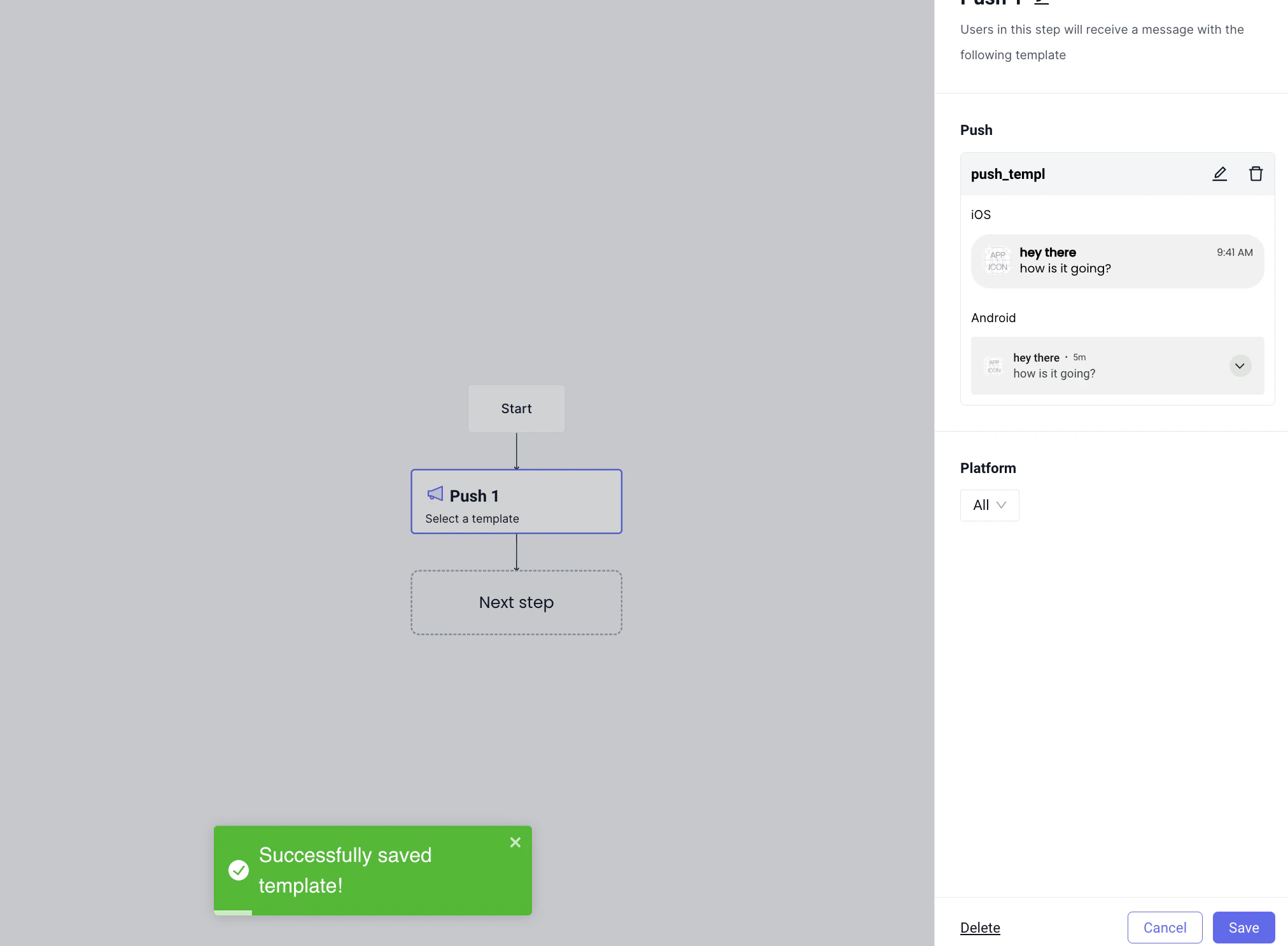
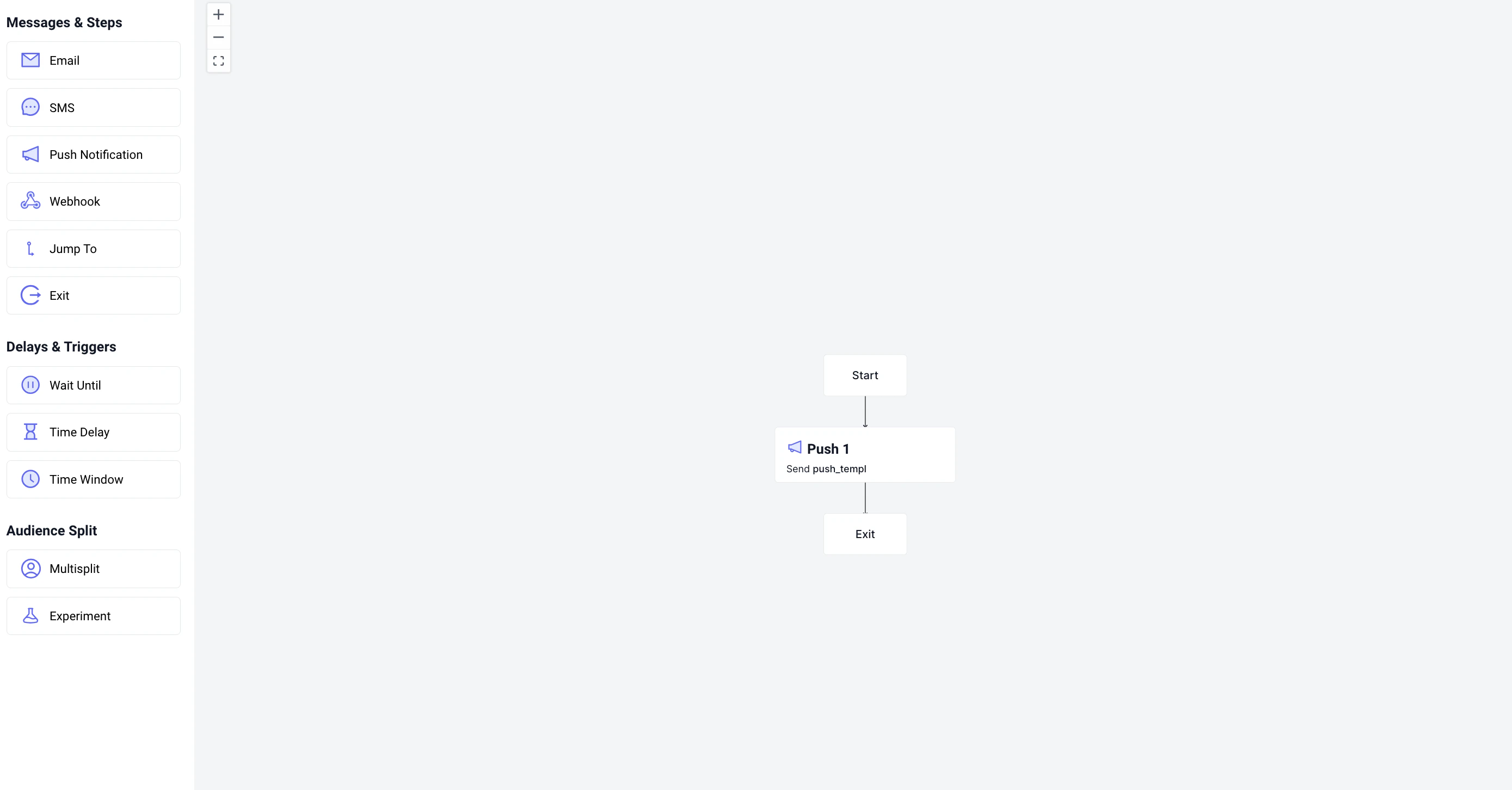
Now we are ready to create a journey and send a push. We will keep it simple. Go to the journey builder page and create a journey The empty journey should look like this: