> ## Documentation Index
> Fetch the complete documentation index at: https://laudspeaker.com/docs/llms.txt
> Use this file to discover all available pages before exploring further.
# Email
## Setting up Email
Setting up email, requires external api keys for email sending services
After navigating to email set up, from settings you will see a page like this:
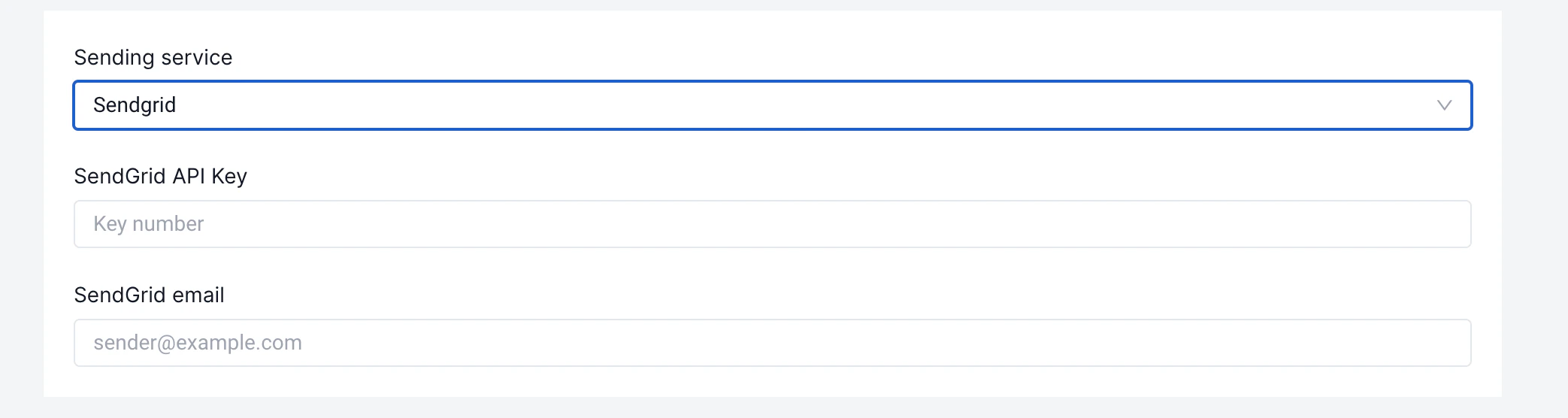
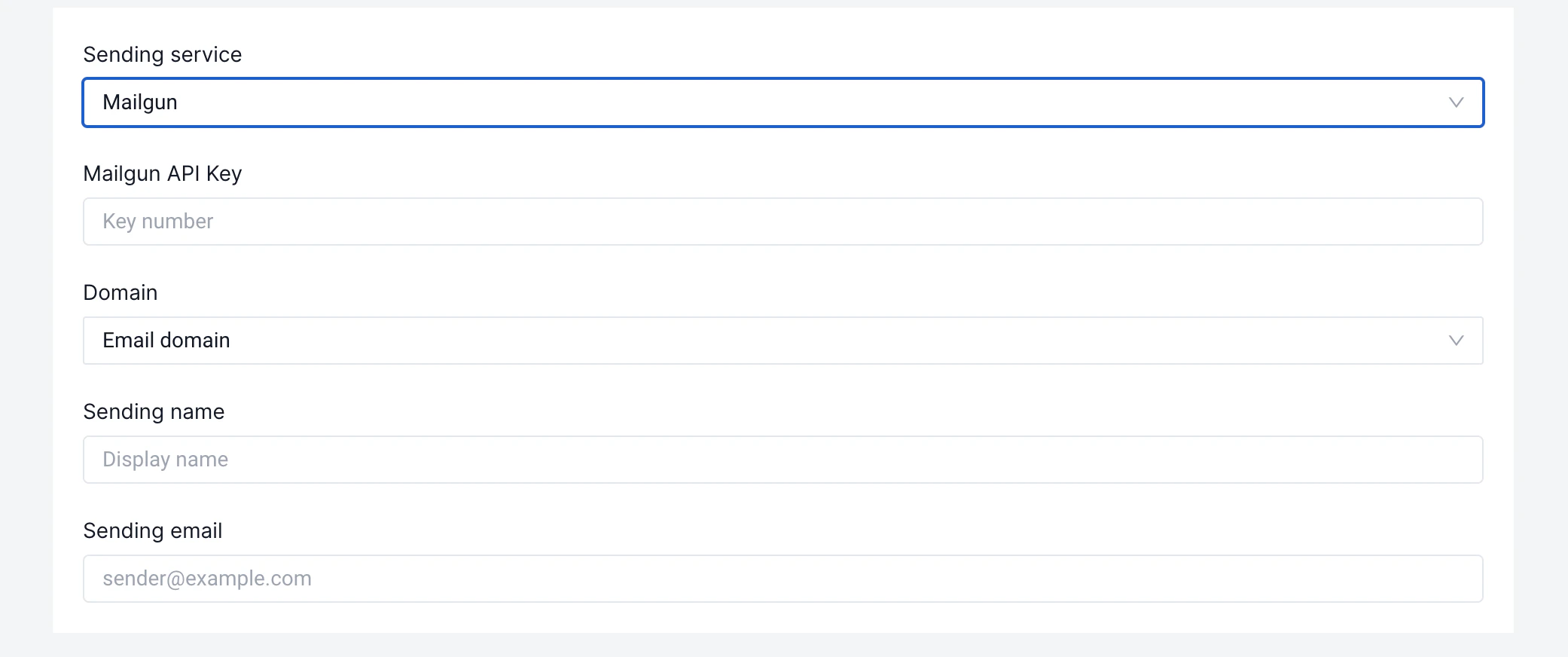
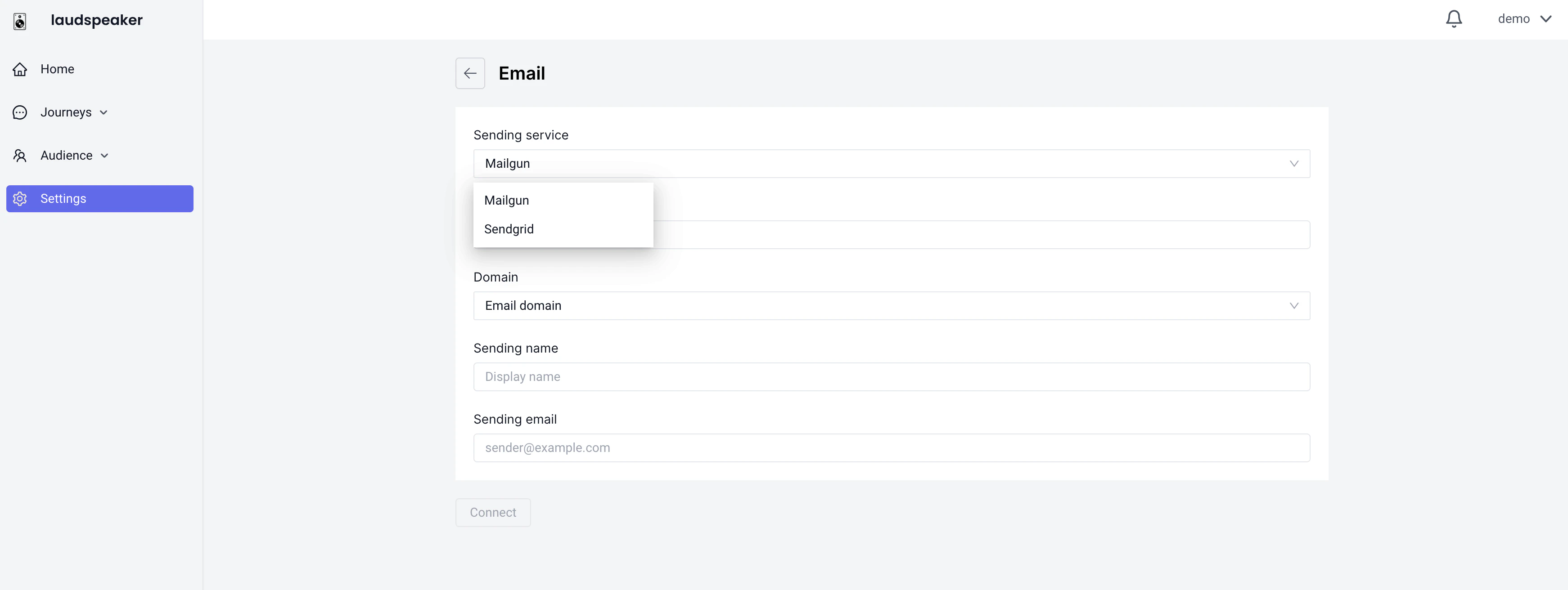 We currently support email sending through mailgun, and sendgrid.
 ## Designing Email Messages
To create and design an email that you can use in subsequent journey, you need to first navigate to message templates
## Designing Email Messages
To create and design an email that you can use in subsequent journey, you need to first navigate to message templates
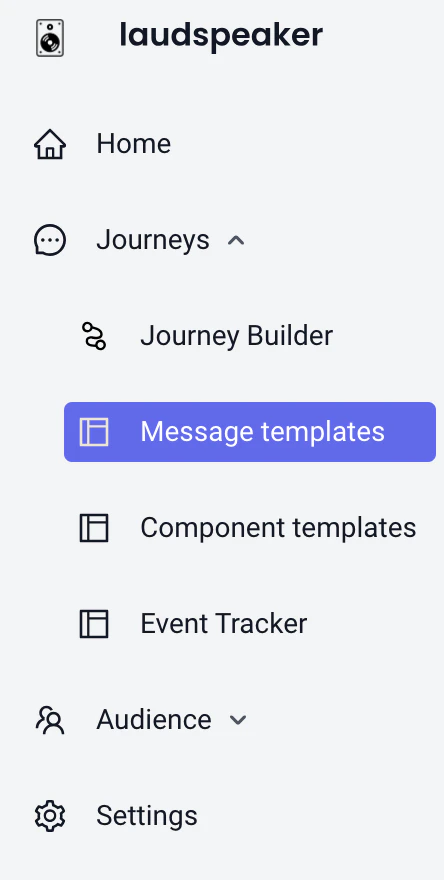 Here you will see some pre-made templates that you can use and edit, or you can create your own. To create your own click on the create template button
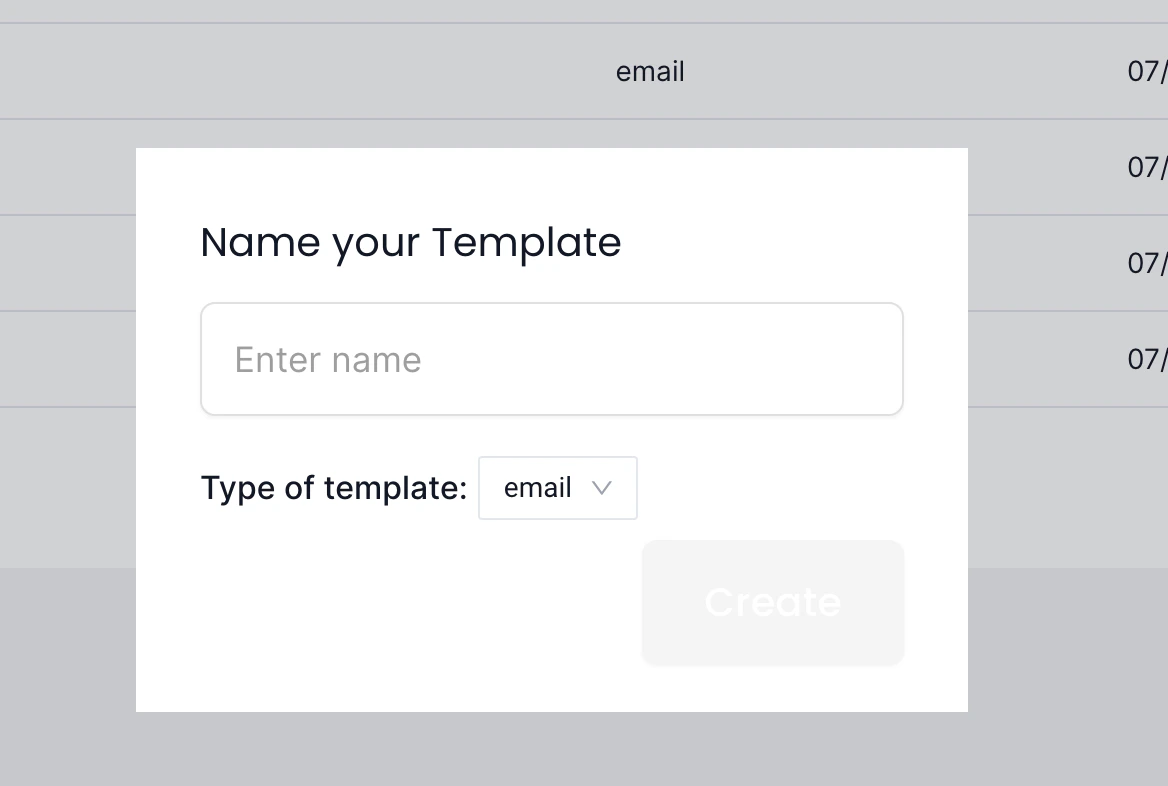
 Now you need to name the template
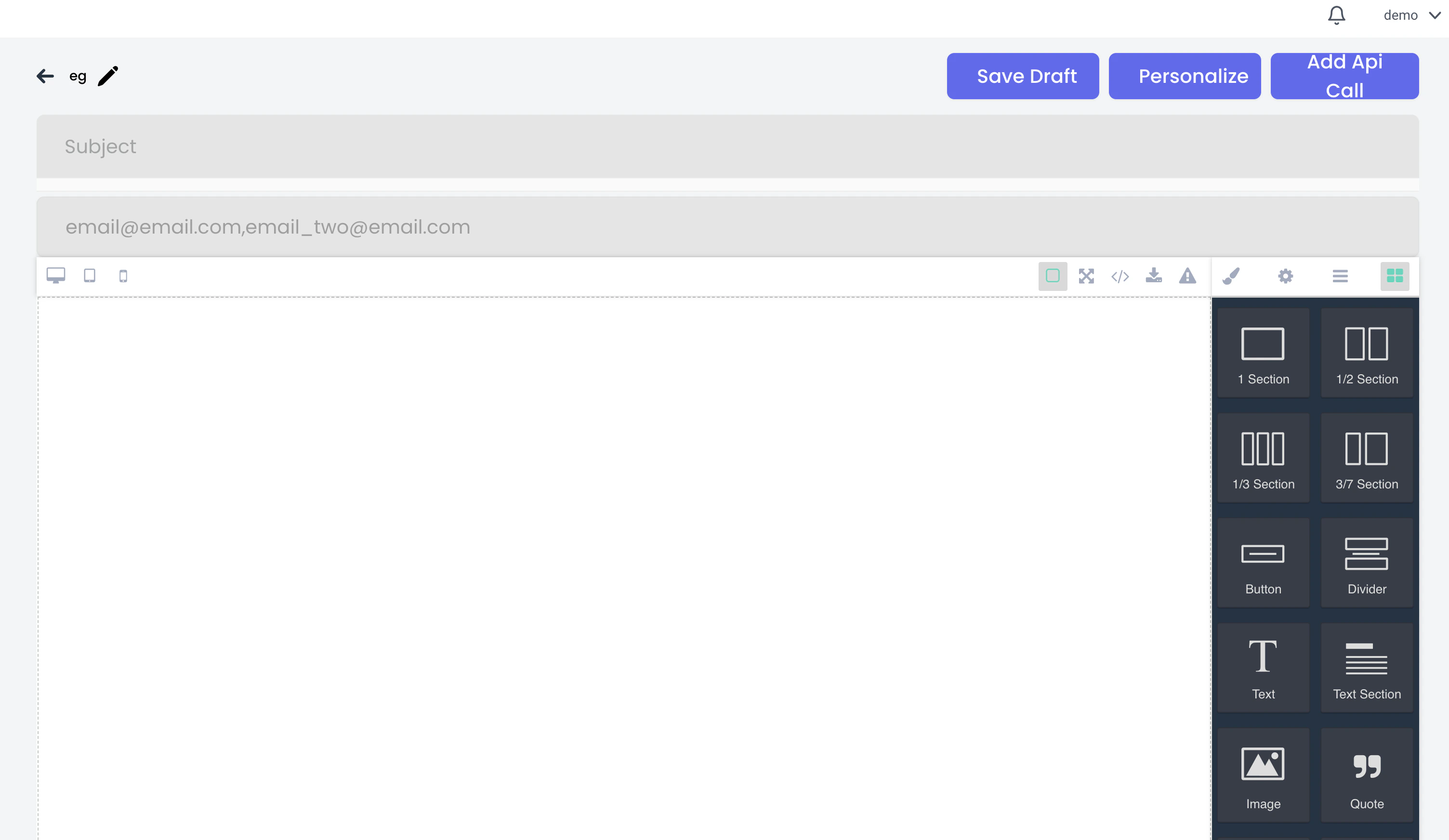
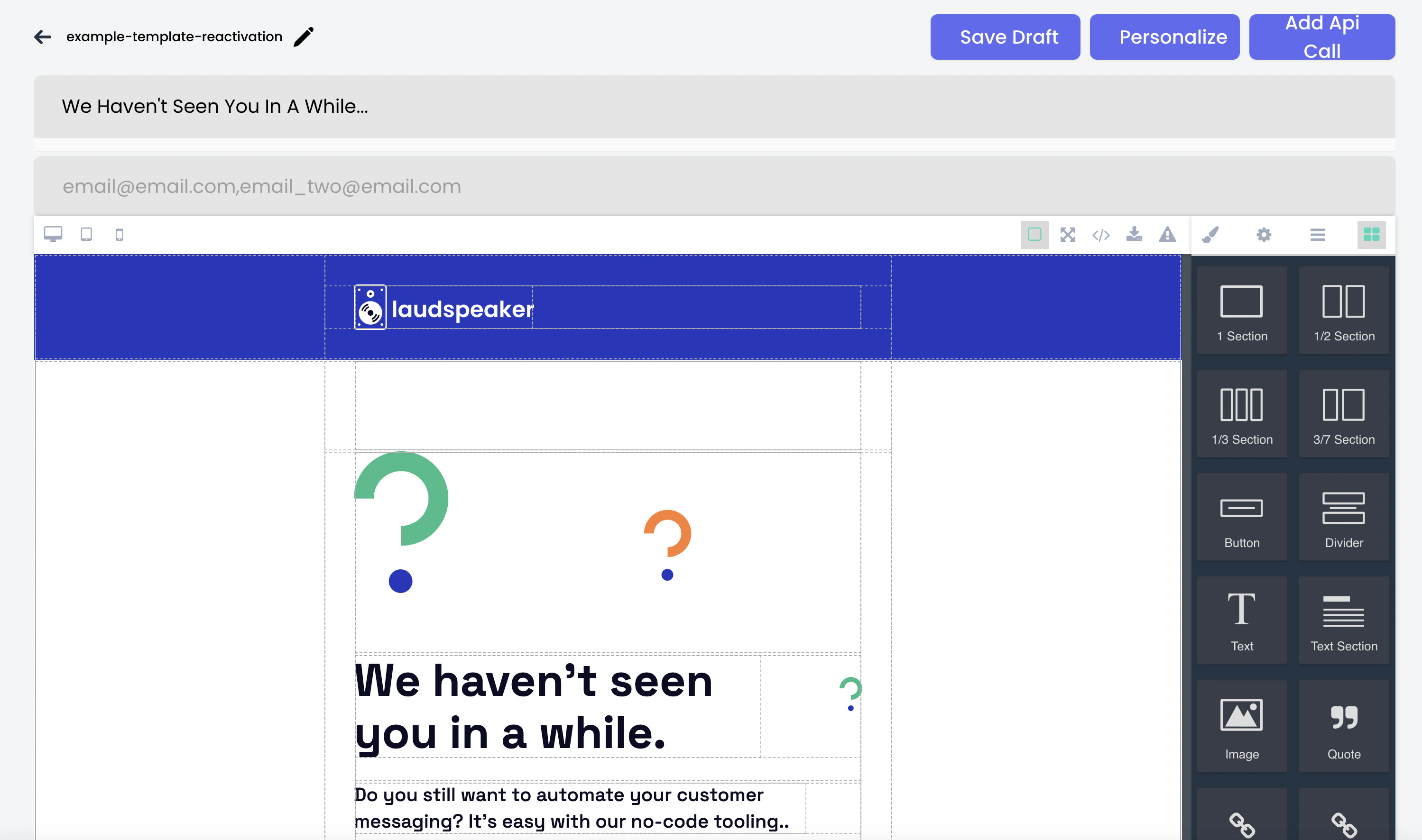
 Now you will see the email designer. Here you can drag a drop elements, add text, personalize with merge tags, or even import html from another tool to create an email.
 ## Using Emails in Journeys
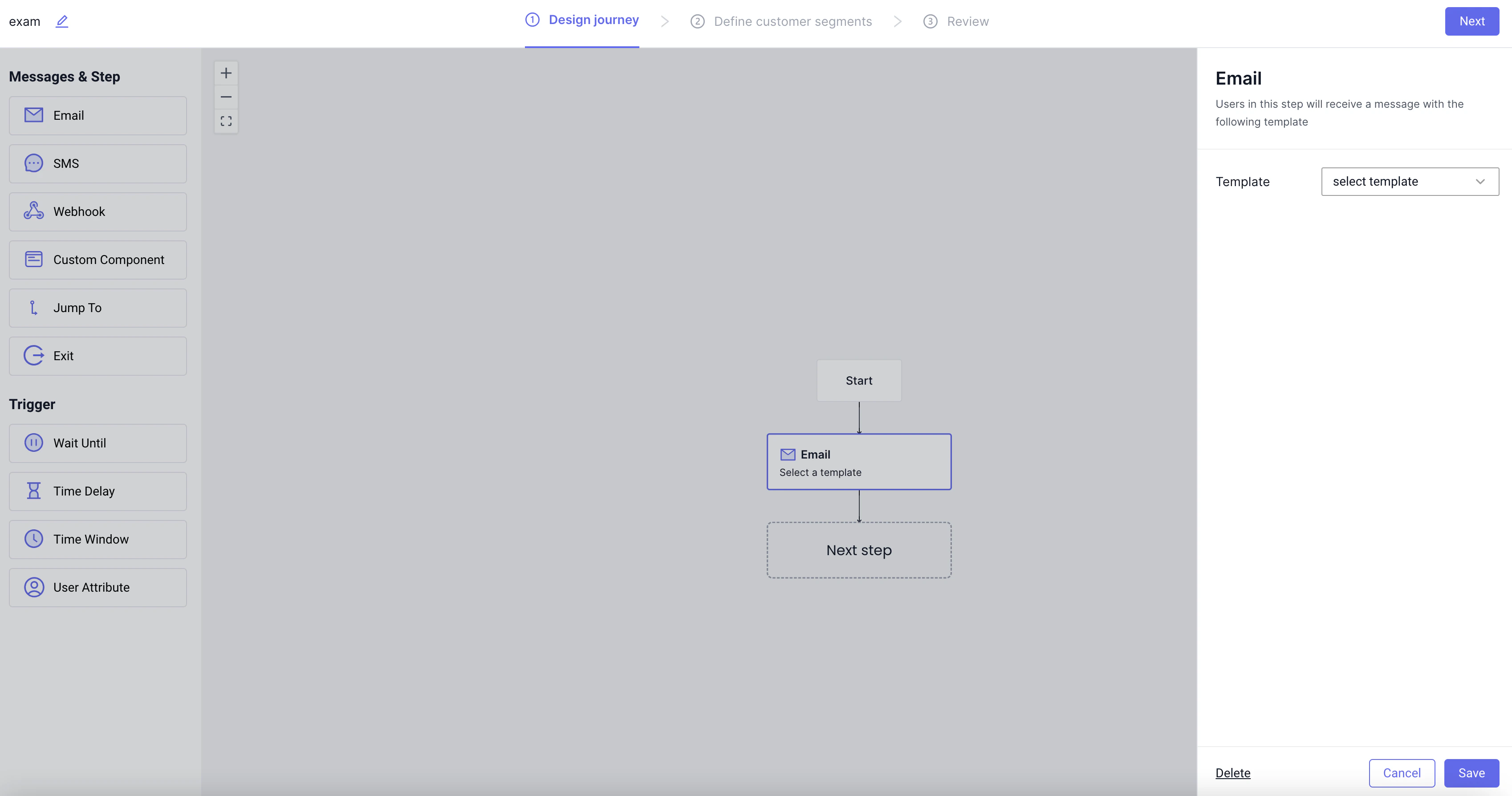
Once email is set up and you have created email templates, you can use them in a journey by dragging an email step onto the canvas and then selecting the template you designed.
## Using Emails in Journeys
Once email is set up and you have created email templates, you can use them in a journey by dragging an email step onto the canvas and then selecting the template you designed.