> ## Documentation Index
> Fetch the complete documentation index at: https://laudspeaker.com/docs/llms.txt
> Use this file to discover all available pages before exploring further.
# Setting up Laudspeaker
> A tutorial for setting up the user schema and message channels
Before using Laudspeaker to send notifications and messages, or importing users, you need to set up two things.
1. Your user schema
2. The message channels you plan to use
### Setting up the user schema
Your user schema is found under the audience tab, under people
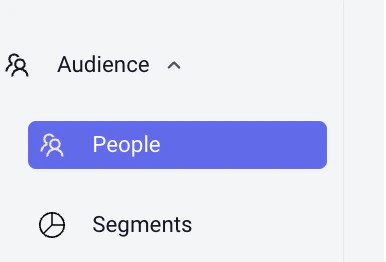 and then in the settings section:
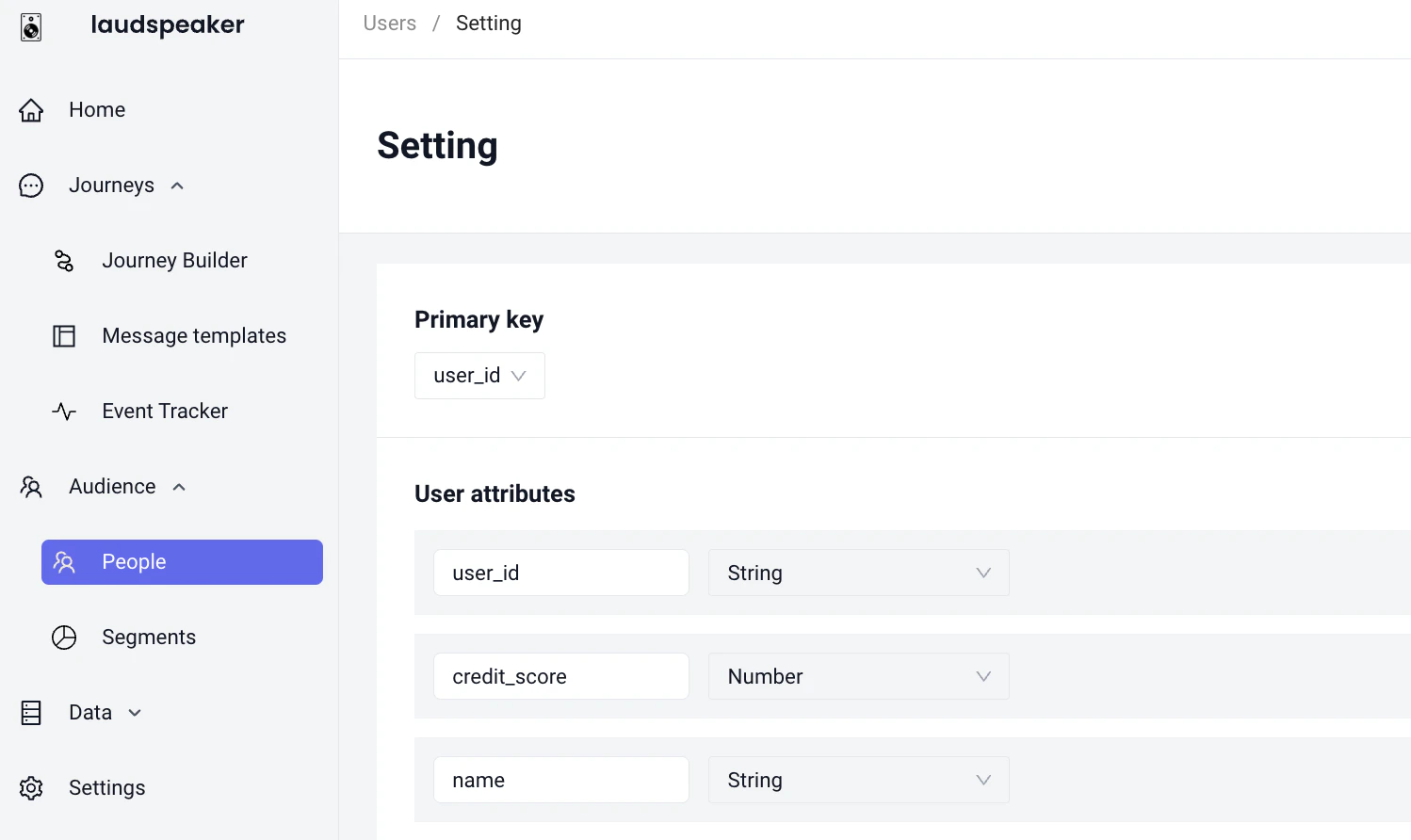
 The user schema is a list of all the properties you wish to store for your users in Laudspeaker.
You can name each property and you must also set its type. For example `first_name` would be of type `string` and `age` would be `number`. We support a broad range of types including string, number, date (with different formats), boolean (True or False), and arrays and objects (still in beta)
We require one special property which is called the **primary key** to be a **unique identifier** for your user. This primary key will be used subsequently to identify your user if you plan to use events with Laudspeaker, and cannot be changed once set.
The user schema is a list of all the properties you wish to store for your users in Laudspeaker.
You can name each property and you must also set its type. For example `first_name` would be of type `string` and `age` would be `number`. We support a broad range of types including string, number, date (with different formats), boolean (True or False), and arrays and objects (still in beta)
We require one special property which is called the **primary key** to be a **unique identifier** for your user. This primary key will be used subsequently to identify your user if you plan to use events with Laudspeaker, and cannot be changed once set.
 ### Message Channels in the User Schema
We also require you to set up message channels. Message Channels are how you tell Laudsepaker which attribute we should use to send messages.
The reason we have message channels at all is because different Laudspeaker customers, use different conventions, for example some customers may use `email`, `Email`, `email_address` all to refer to the same thing. In the message channel section you explictly tell us what your convention is for the given message channels you use
### Verifying schema is set up
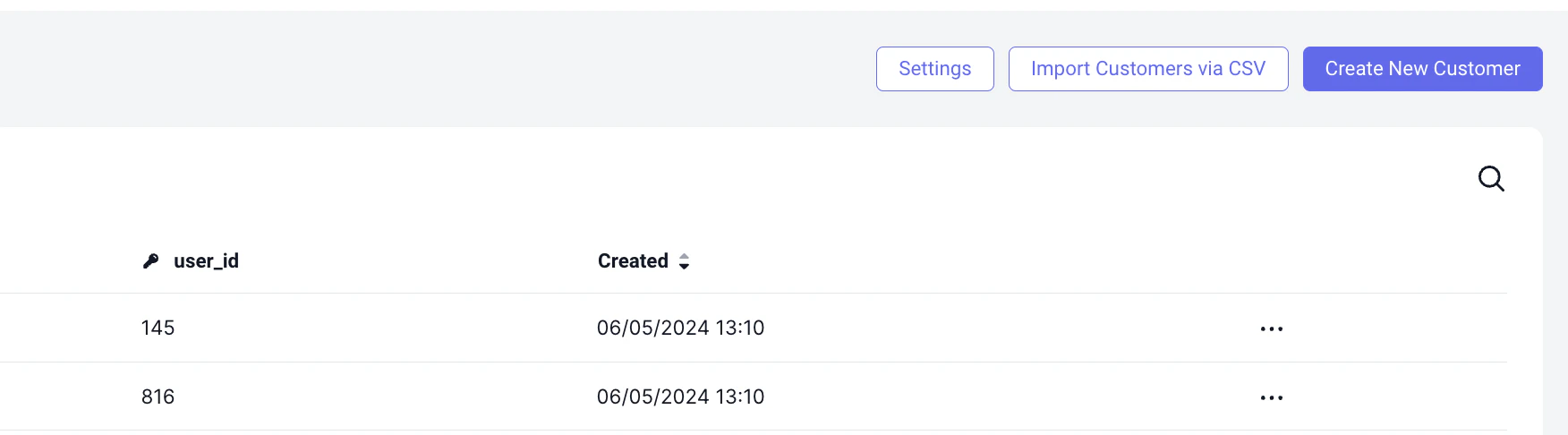
Once your schema is set up correctly, if you navigate back to the people page you will notice that you can now add users!
### Message Channels in the User Schema
We also require you to set up message channels. Message Channels are how you tell Laudsepaker which attribute we should use to send messages.
The reason we have message channels at all is because different Laudspeaker customers, use different conventions, for example some customers may use `email`, `Email`, `email_address` all to refer to the same thing. In the message channel section you explictly tell us what your convention is for the given message channels you use
### Verifying schema is set up
Once your schema is set up correctly, if you navigate back to the people page you will notice that you can now add users!
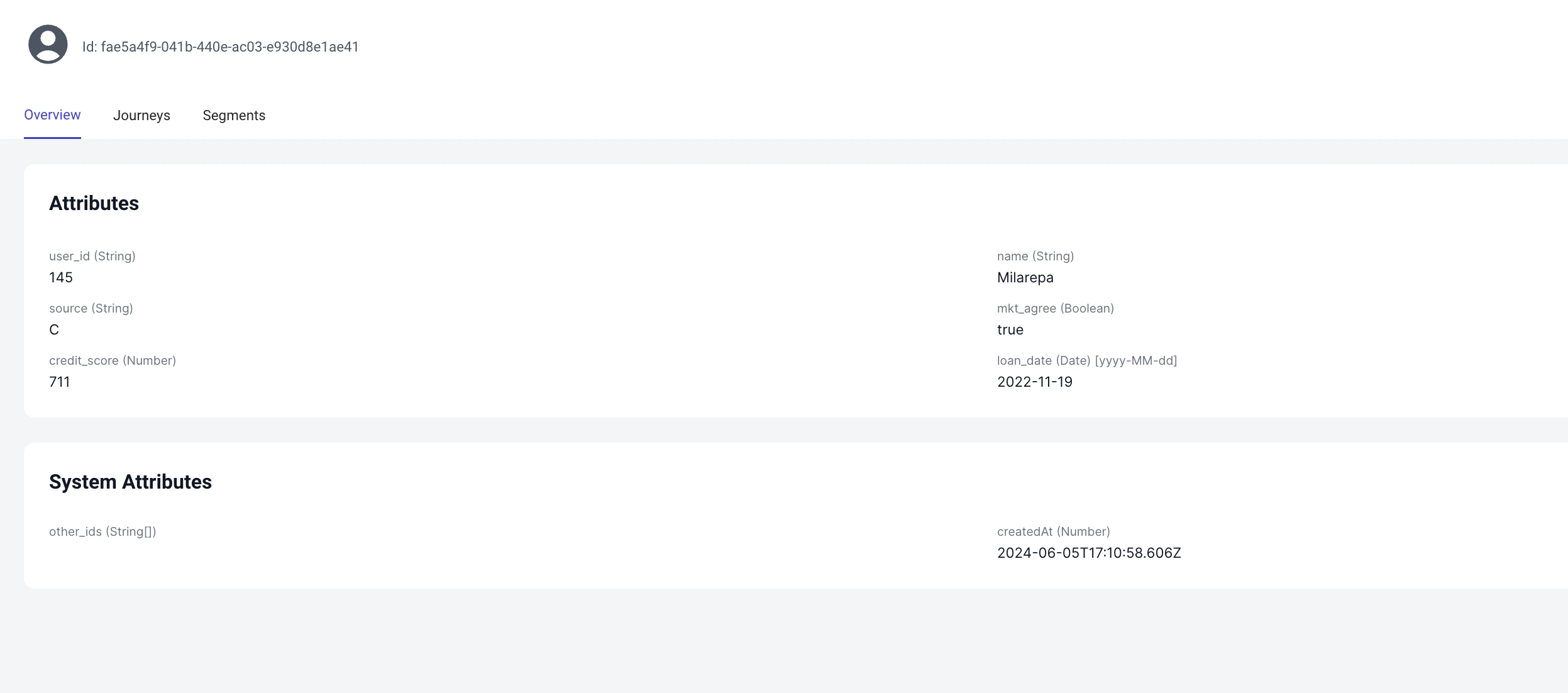
 Once you start populating your users you will notice, we show two types of user properties split across Attributes and System Attributes. System Attributes are properties Laudspeaker collects by default.
 ### Setting up message channels
Currently Laudspeaker supports, the following channels - **push**, **email**, **sms**, and **webhook**.
To use the messaging channels in the journey builder you need to properly set up the messaging channel before hand. For example to use email, you need to set up sending address, and connect Laudspeaker to your domain. There are similar requirements for sms, push and other channels
## How to set up channels
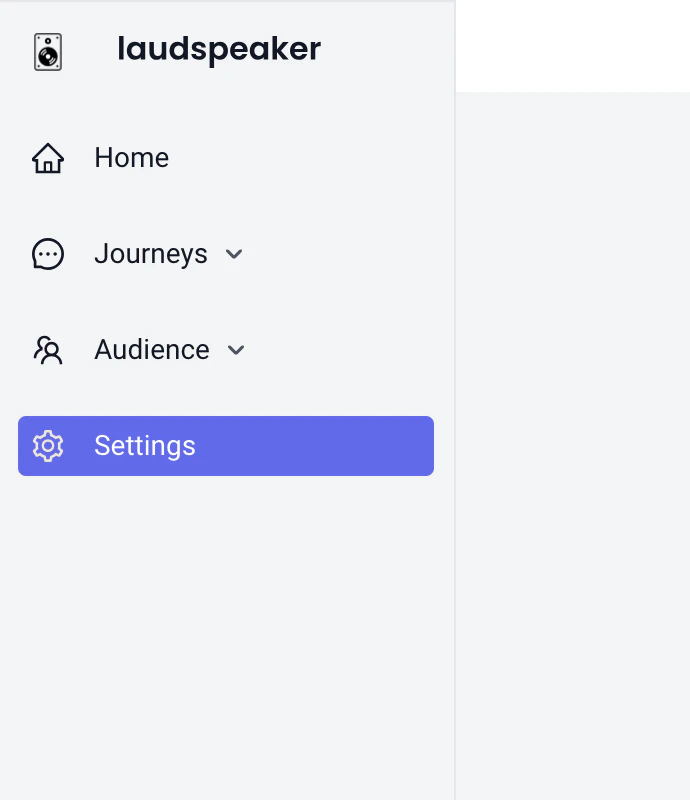
To set up message channels, you must first navigate to settings
### Setting up message channels
Currently Laudspeaker supports, the following channels - **push**, **email**, **sms**, and **webhook**.
To use the messaging channels in the journey builder you need to properly set up the messaging channel before hand. For example to use email, you need to set up sending address, and connect Laudspeaker to your domain. There are similar requirements for sms, push and other channels
## How to set up channels
To set up message channels, you must first navigate to settings
 Then in settings, navigate to the "Message Channel" tab, where you will see a list of all message channels that require set up.
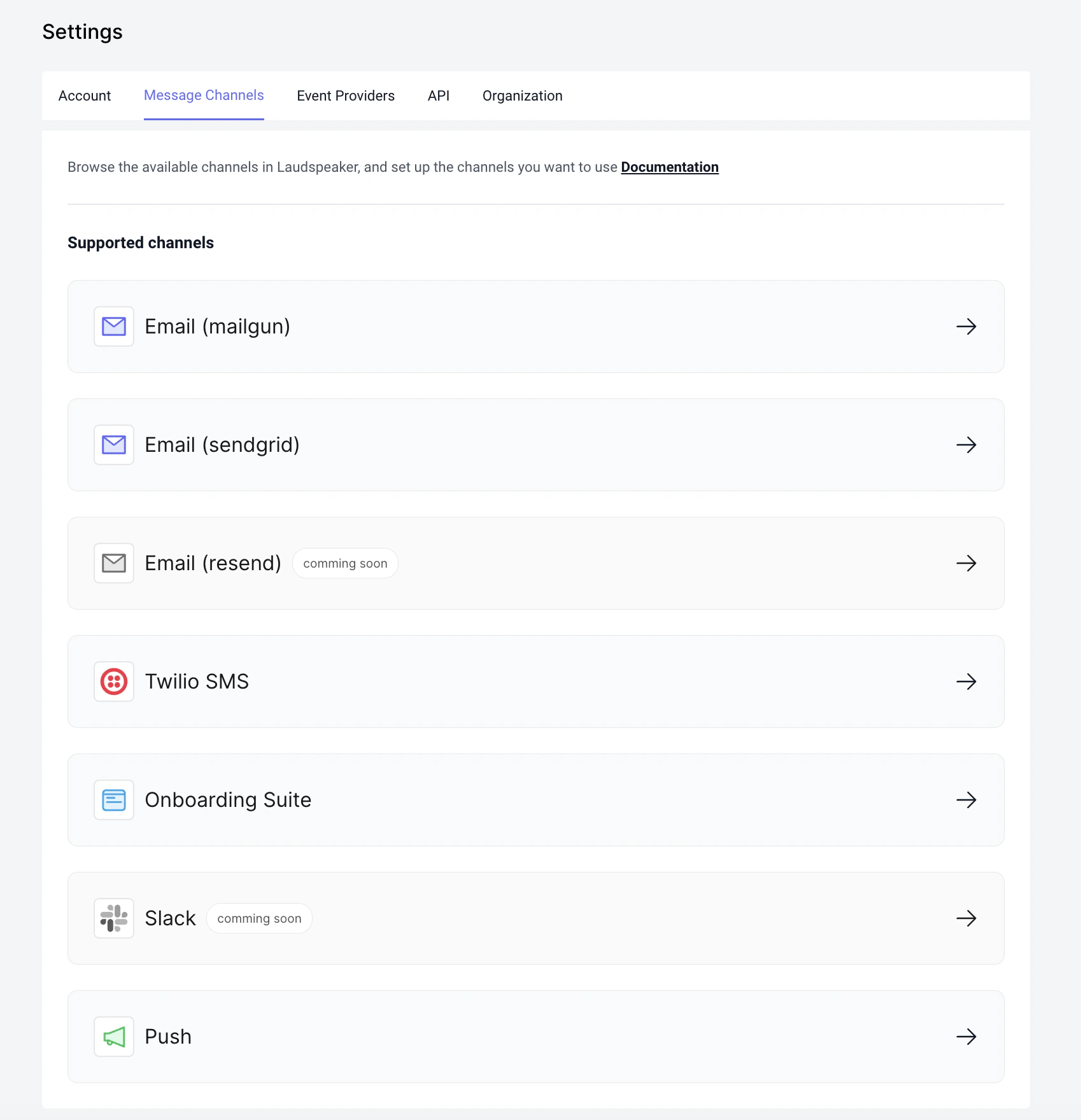 To set up any channel in particular you need to click on that specific channel. Check out channels specific pages for more information, and a push specific tutorial [here](/docs/getting-started/setting-up-mobile-push.mdx)